Post-Deployment: Certificates
Register the Microsoft CA in VCF Operations Fleet Management, replace the default VMCA certificates across the 9.1 fleet, and manage renewal.
VCF 9.1 lab series. Reviewed and rebuilt from the 9.0.2 Certificates guide against the 9.1 Fleet Management UI.
📘 Official documentation. This is a lab walkthrough, not a replacement for the vendor docs. For the authoritative, supported procedure, follow Broadcom’s Managing Certificates in VMware Cloud Foundation (VCF 9.1). Where this guide and the official docs differ, the official docs win.
Pre-requisite: A Windows Server running ADCS must be deployed to act as the CA — see Windows AD Deployment. In this lab the Windows server is CA-only: VCF uses it to issue and auto-rotate certificates. Identity is handled separately through OIDC via authentik (auth.pgnet.io), backed by the same Windows AD/LDAP — see Post-Deployment: Identity & SSO. Certificate replacement does not depend on identity being configured first; the two are independent.
What’s changed from 9.0.2 — certificate management now lives entirely in VCF Operations → Fleet Management → Certificates; there is no separate SDDC Manager certificate UI. The Configure CA dialog adds an explicit Certificate Authority Type selector (Microsoft CA or OpenSSL), every component is issued a default VMCA certificate during bring-up (so the fleet is functional before you ever touch a CA), and a new Auto-Renewal capability can keep supported certificates current automatically.
Certificate Overview
Open VCF Operations → Manage → Fleet Management → Certificates. The scope selector on the left lists VCF Management, VCF Instances, and Standalone vCenter Instances — start with VCF Management.
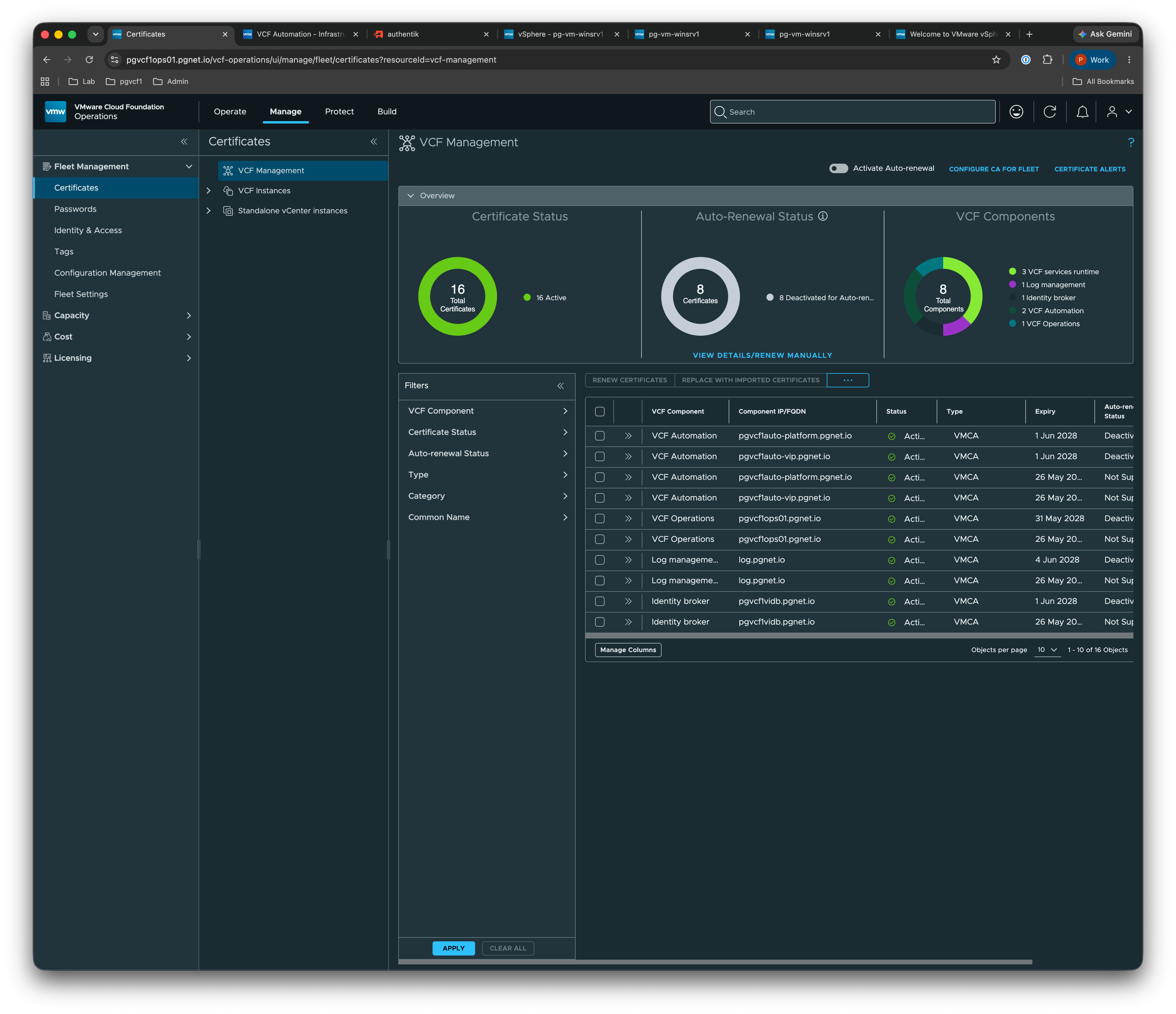
Out of the box every component is issued a VMCA (VMware Certificate Authority) self-signed certificate during bring-up. The dashboard summarises the fleet state:
| Panel | Lab state |
|---|---|
| Certificate Status | 16 total certificates — all Active |
| Auto-Renewal Status | 8 deactivated for auto-renewal |
| VCF Components | 8 components — 3 VCF services runtime, 2 VCF Automation, 1 VCF Operations, 1 Log management, 1 Identity broker |
These VMCA certificates work, but they are not trusted by browsers or external clients. The goal of this page is to replace them with certificates signed by the Microsoft CA built earlier.
Configure the Certificate Authority
Select Configure CA for Fleet. In Configure Certificate Authorities for Fleet, set the Certificate Authority Type to Microsoft CA and complete the fields:
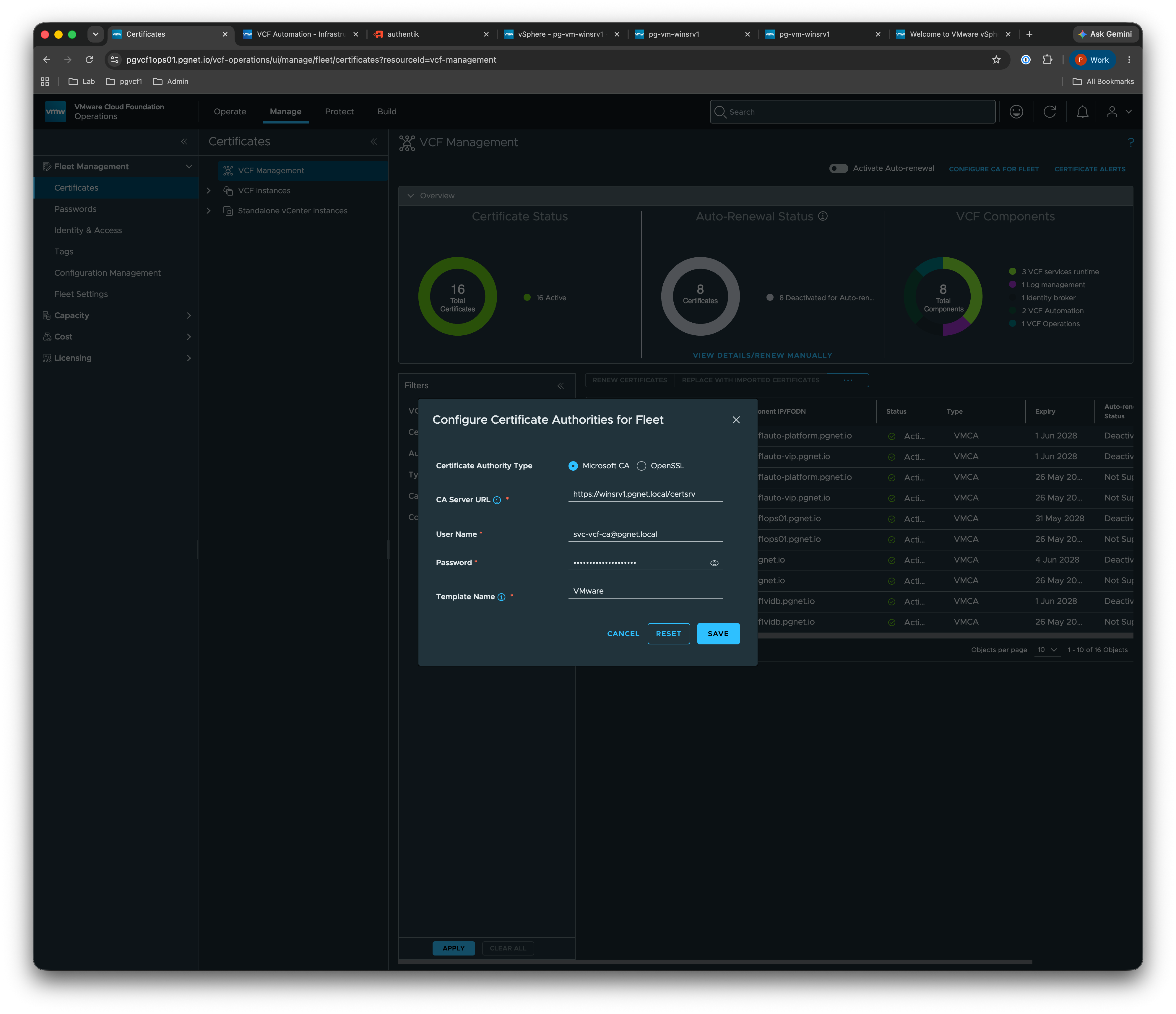
| Field | Value |
|---|---|
| Certificate Authority Type | Microsoft CA |
| CA Server URL | https://winsrv1.pgnet.local/certsrv |
| User Name | svc-vcf-ca@pgnet.local |
| Password | (CA service-account password) |
| Template Name | VMware |
Select Save. A green banner confirms the registration:
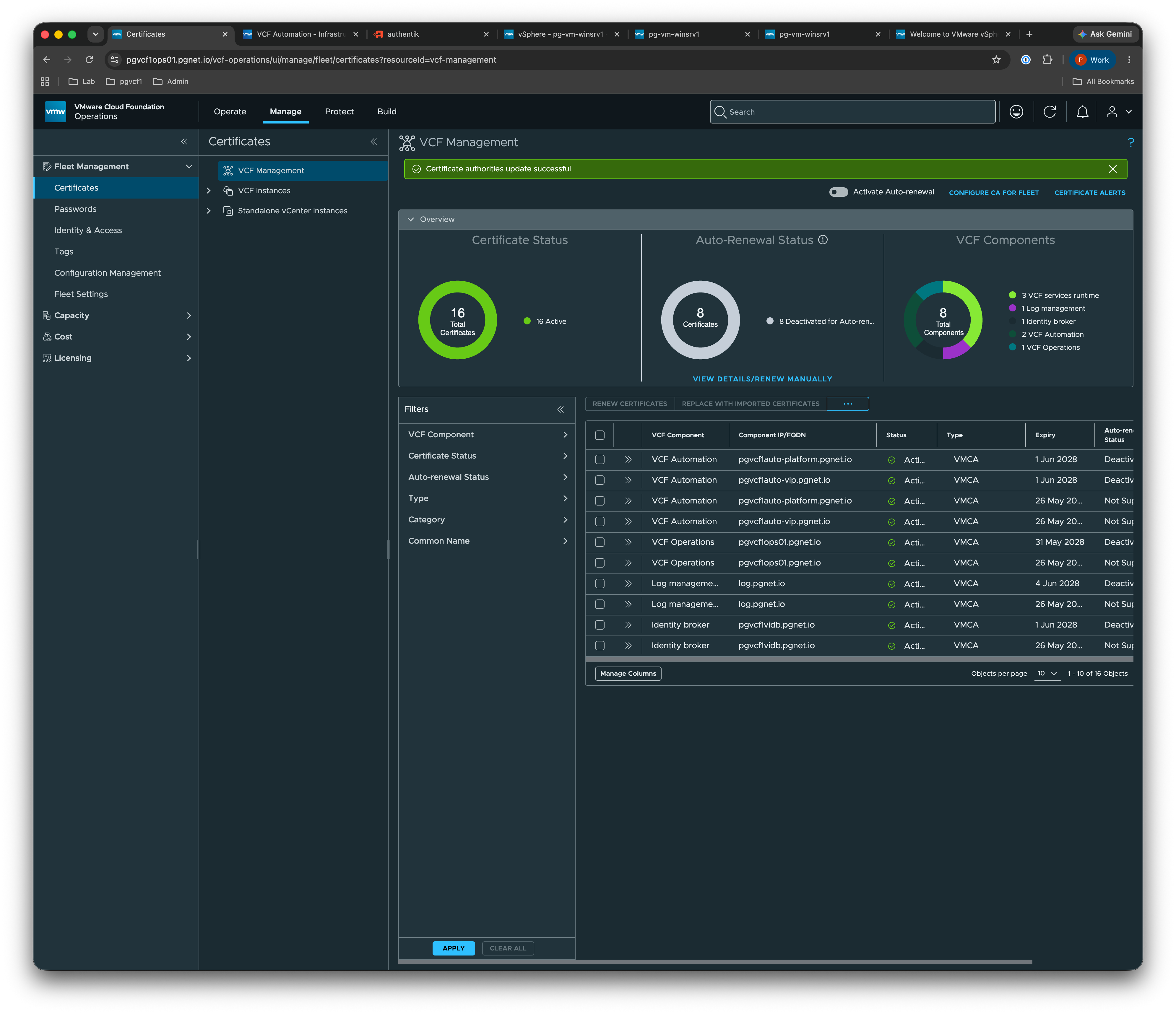
Repeat the Configure CA step for each scope you intend to manage — VCF Management and any VCF Instances.
OpenSSL alternative — if you do not have a Microsoft CA, choosing OpenSSL as the Certificate Authority Type lets Fleet Management act as its own signing authority. For this lab the Microsoft ADCS path is used so certificates chain to the same root already trusted by the domain.
Generate and Deploy Certificates
With the CA registered, replace the default VMCA certificate on each component. Select the component’s TLS certificate → ... → Generate CSR, then Generate Signed Certificate to have Fleet Management submit the request to the Microsoft CA and import the result in one step.
Example CSR parameters for the Operations/Fleet management certificate:
| Parameter | Value |
|---|---|
| Common Name | fleet.pgnet.io |
| Organization | pgnet |
| Organizational Unit | PGGB |
| Country | Australia |
| State/Province | Queensland |
| Locality | Brisbane |
| Email Address | admin@pgnet.io |
| Host | fleet.pgnet.io |
| Subject Alternative Name | fleet.pgnet.io |
| Key Size | 4096 |
Workflow
- From Fleet Management → Certificates, select a component and Generate CSR.
- Generate Signed Certificate — Fleet Management submits the CSR to the registered Microsoft CA and retrieves the signed certificate. (If you are using an offline or external CA, export the CSR, submit it manually, and import the signed certificate back.)
- The component reloads with the new certificate; the Issuer changes from VMCA to the Microsoft CA.
- Repeat for each component, or select multiple components and run the replace action against them together.
Certificate Status Reference
The component table lists every certificate with its FQDN, issuer type, expiry, and auto-renewal state. Before replacement, the fleet shows all components on VMCA:
| VCF Component | Component FQDN | Status | Type | Expiry | Auto-Renew |
|---|---|---|---|---|---|
| VCF Automation | pgvcfauto-platform.pgnet.io | Active | VMCA | 1 Jun 2028 | Deactivated |
| VCF Automation | pgvcfauto-vip.pgnet.io | Active | VMCA | 1 Jun 2028 | Deactivated |
| VCF Operations | pgvcflops01.pgnet.io | Active | VMCA | 31 May 2028 | Not Supported |
| Log management | log.pgnet.io | Active | VMCA | 4 Jun 2028 | Not Supported |
| Identity broker | pgvcflvidb.pgnet.io | Active | VMCA | 1 Jun 2028 | Not Supported |
16 certificates across 8 components in the lab. After replacement, the Type/Issuer column for each replaced component reads the Microsoft CA instead of VMCA.
Auto-Renewal
VCF 9.1 can renew supported certificates automatically. With the CA registered, enable Activate Auto-Renewal to have the fleet reissue certificates before they expire — no more manual replacement cycles for components that support it.
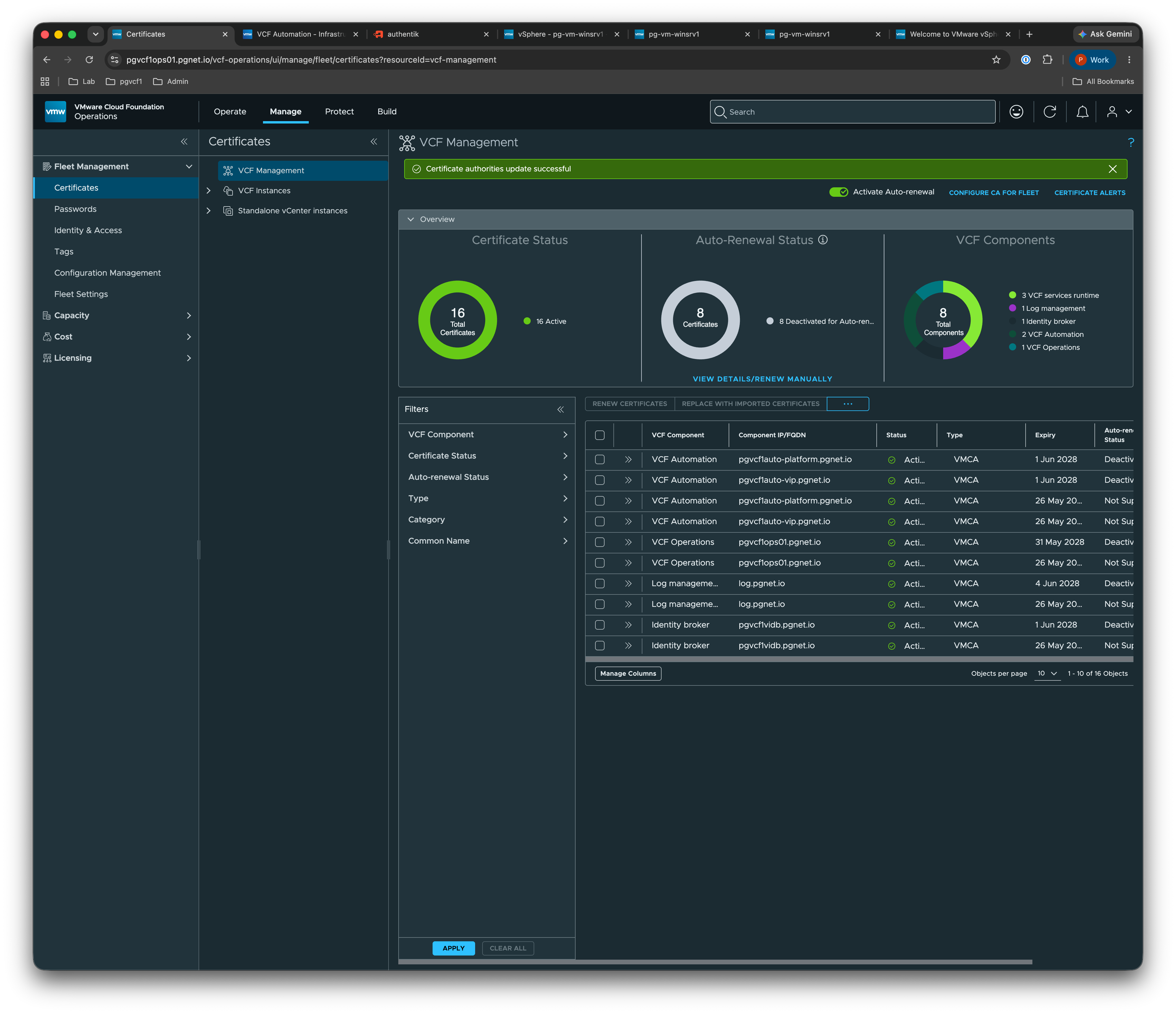
Components marked Not Supported in the Auto-Renew column must still be rotated manually. Use the Auto-Renewal Status donut on the overview to track how many certificates are covered.
The CA root certificate must also be added to any host computer accessing these devices to avoid browser trust warnings.