Deployment (Bring-Up)
Running the VCF 9.1 bring-up wizard — VCF Installer appliance, the four-stage Plan/Prepare/Deploy flow, validation, and initial fleet formation.
VCF 9.1 lab series. Reviewed and rebuilt from the 9.0.2 Deployment (Bring-Up) using the 9.1 installer.
📘 Official documentation. This is a lab walkthrough, not a replacement for the vendor docs. For the authoritative, supported procedure, follow Broadcom’s Deploying a New VCF or vSphere Foundation Platform (VCF 9.1). Where this guide and the official docs differ, the official docs win.
Phase 3: The Deployment
VCF 9.1 replaces the single long bring-up form from 9.0.x with a guided, four-stage wizard:
| Stage | Purpose |
|---|---|
| Introduction | Choose the deployment path (new fleet, new instance, or deferred components). |
| Plan | High-level decisions — existing components, sizing, storage type, and a prerequisites review with FQDN pre-generation. |
| Prepare | The detailed configuration — hosts, networks, vCenter, storage, distributed switch, NSX, and SDDC Manager. |
| Deploy | Review, run validation (17 checks), then deploy. |
What’s changed from 9.0.2 — the wizard UI is now branded VCF Installer (though the OVA is still shipped as
VCF-SDDC-Manager-Appliance), sizing is split into a deployment model (Simple / High Availability) and a deployment size, and a new Pre-Fill Generated FQDNs helper generates every component FQDN from a prefix/suffix pattern. The wizard also saves progress locally as you go, so you can close and resume.
Deploy the VCF Installer Appliance
Deploy the VCF Installer OVA onto your Secondary (Supporting) vSphere Cluster, attached to a port group with routing/L2 adjacency to VLAN 201 (Management).
| Parameter | Value |
|---|---|
| OVA File | VCF-SDDC-Manager-Appliance-9.1.0.0.25371088.ova |
| VM Name (Display) | installer |
| Hostname | pgvcf1sddcm.pgnet.io |
| Root Password | VMware123!VMware123! |
| Admin (admin@local) Password | VMware123!VMware123! |
| IP Address | 10.200.1.67 |
| Subnet Mask | 255.255.255.0 |
| Default Gateway | 10.200.1.1 |
| DNS Servers | 10.200.1.240, 10.200.10.75 |
| Domain / Search | pgnet.io |
| NTP Servers | 10.200.1.240, 10.200.10.75 |
The installer becomes SDDC Manager. In this lab the Installer appliance is deployed with the SDDC Manager FQDN (
pgvcf1sddcm.pgnet.io) and is converted in place into the SDDC Manager during bring-up — this is thesddcManagerSpec.useExistingDeployment: truesetting in the deployment spec. Do not deploy a separate SDDC Manager.
Verification: once booted, browse to https://pgvcf1sddcm.pgnet.io and log in as admin@local with the admin password above.
Stage 1 — Introduction: Deployment Paths
The installer can deploy a new fleet, add an instance to an existing fleet, or deploy components you deferred earlier. For a greenfield lab, select Deploy a new VCF fleet.
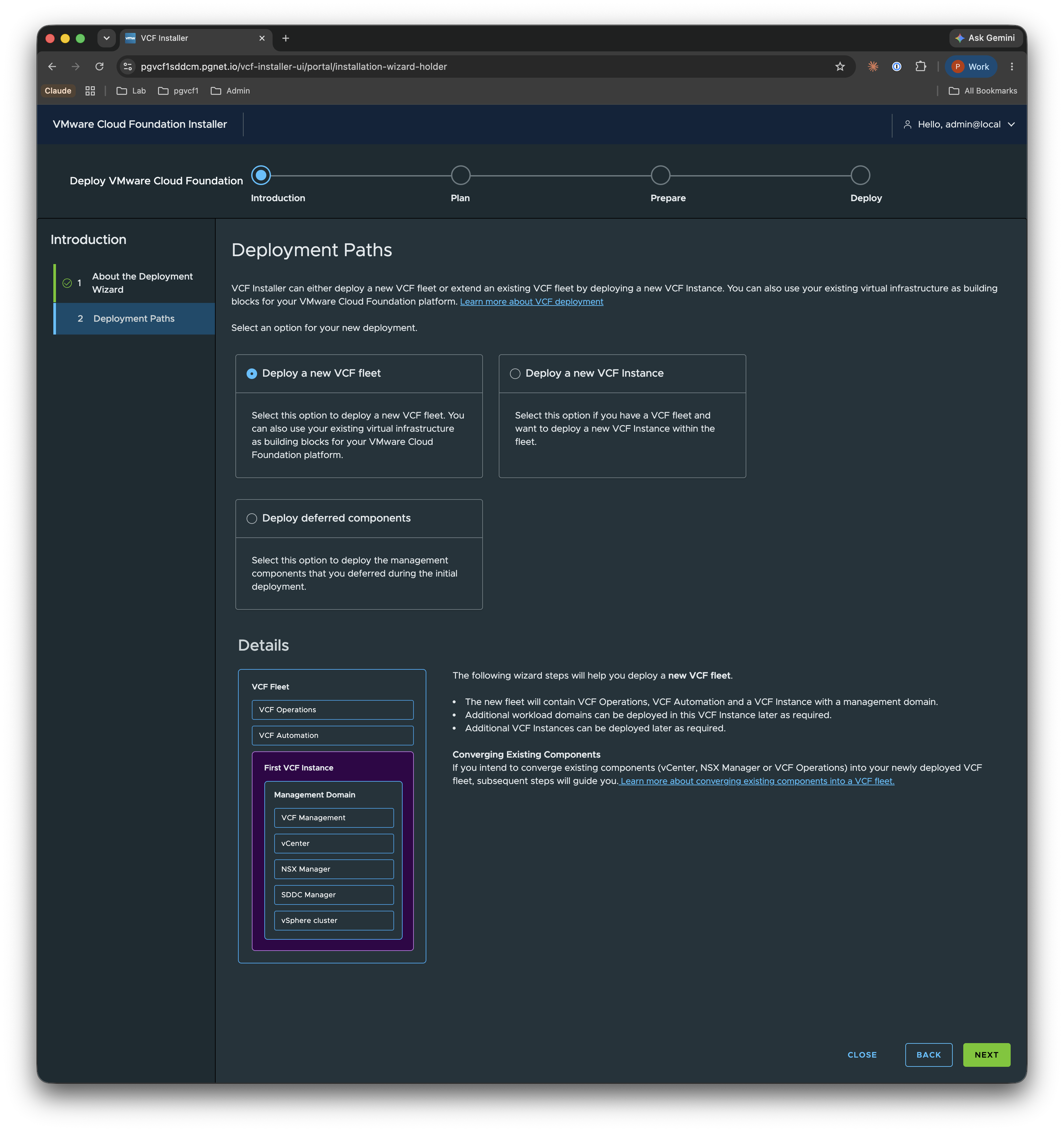
The new fleet deploys VCF Operations, VCF Automation, and the First VCF Instance (the management domain: VCF Management, vCenter, NSX Manager, SDDC Manager, and the vSphere cluster). Additional workload domains and VCF instances are added later.
Stage 2 — Plan
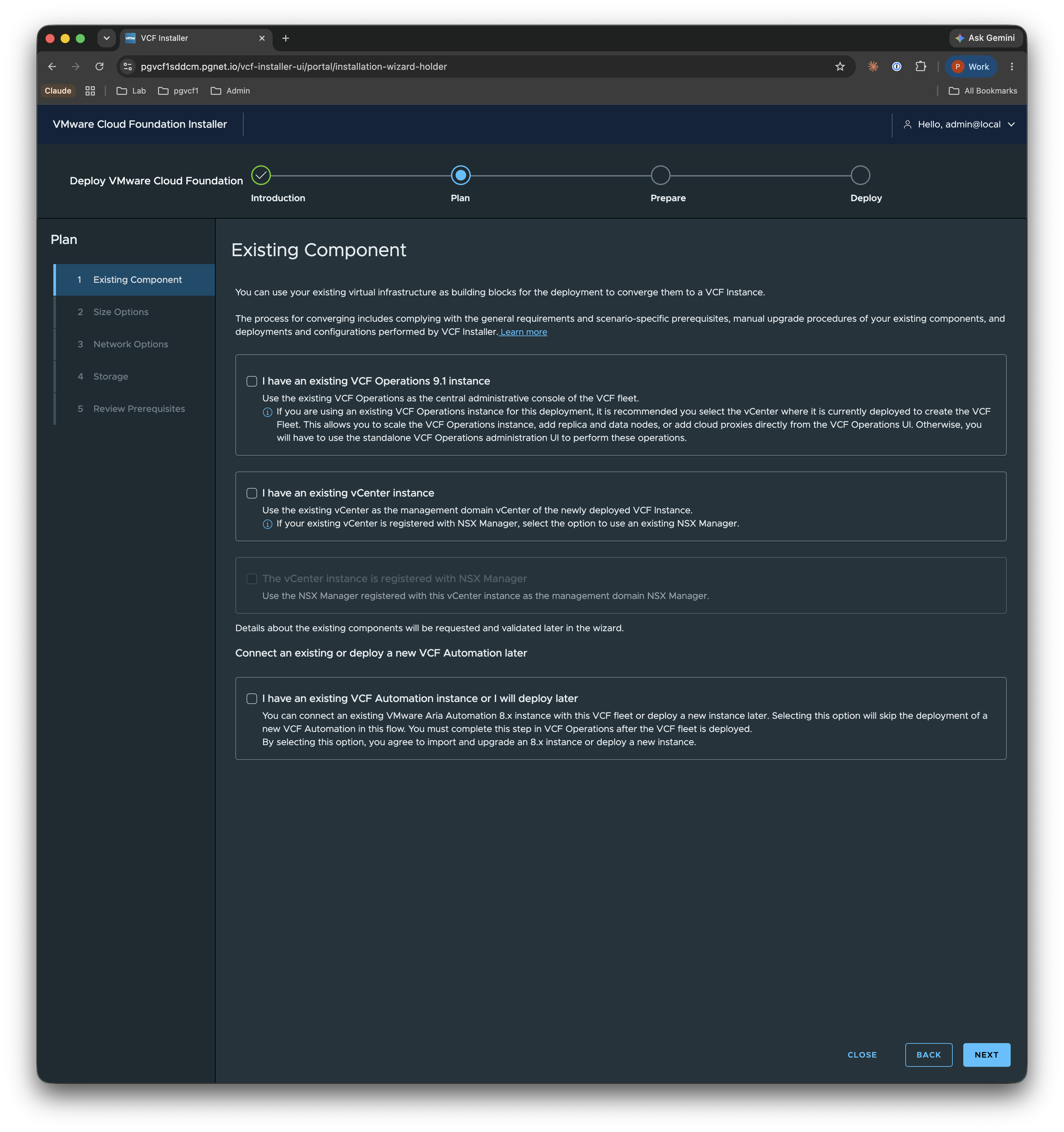
Existing Component
This lab is greenfield, so leave all “existing component” options unchecked — the wizard will deploy fresh VCF Operations, vCenter, NSX, and VCF Automation. (Check these only when converging an existing vCenter / VCF Operations / Automation into the new fleet.)
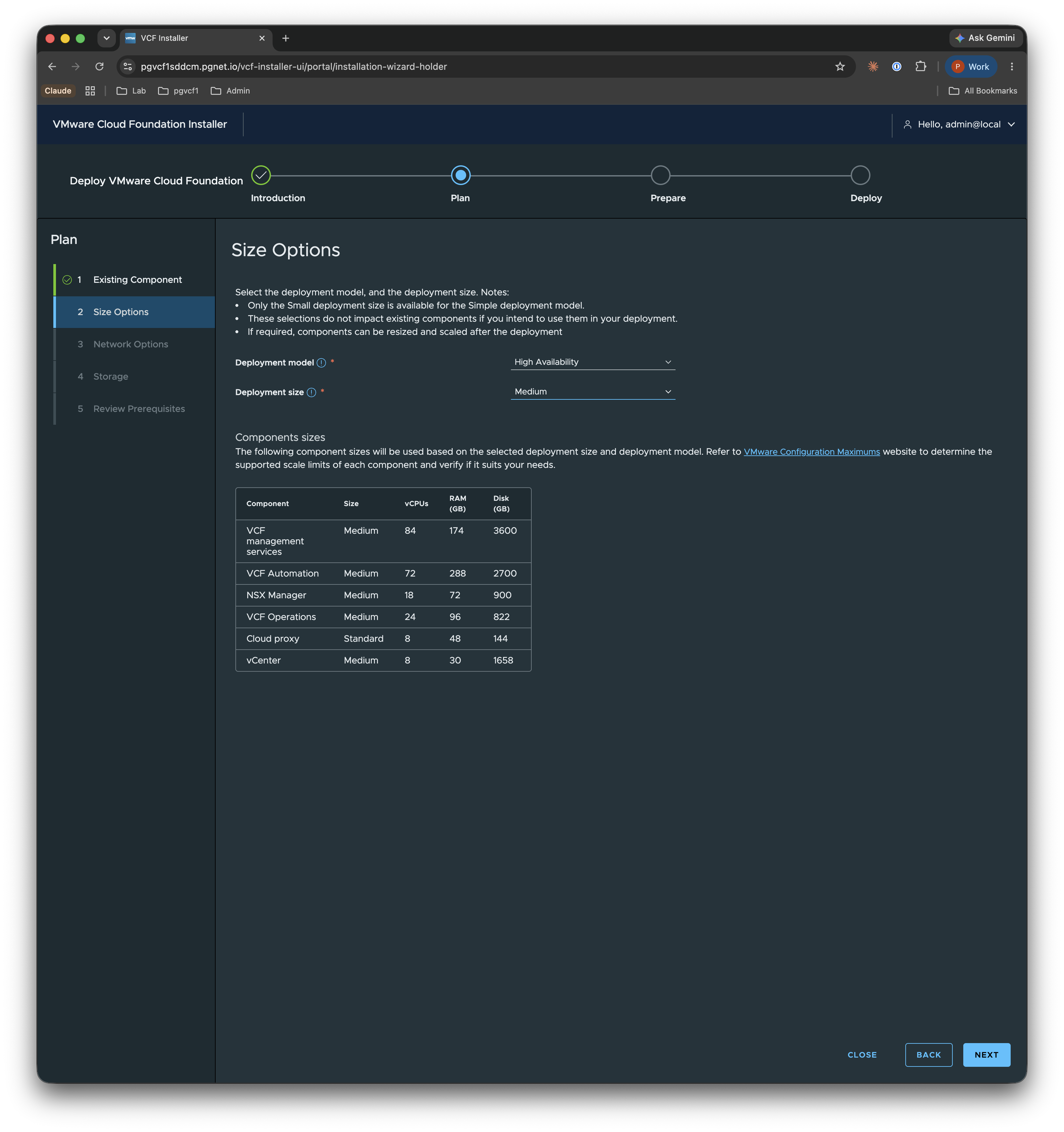
Size Options
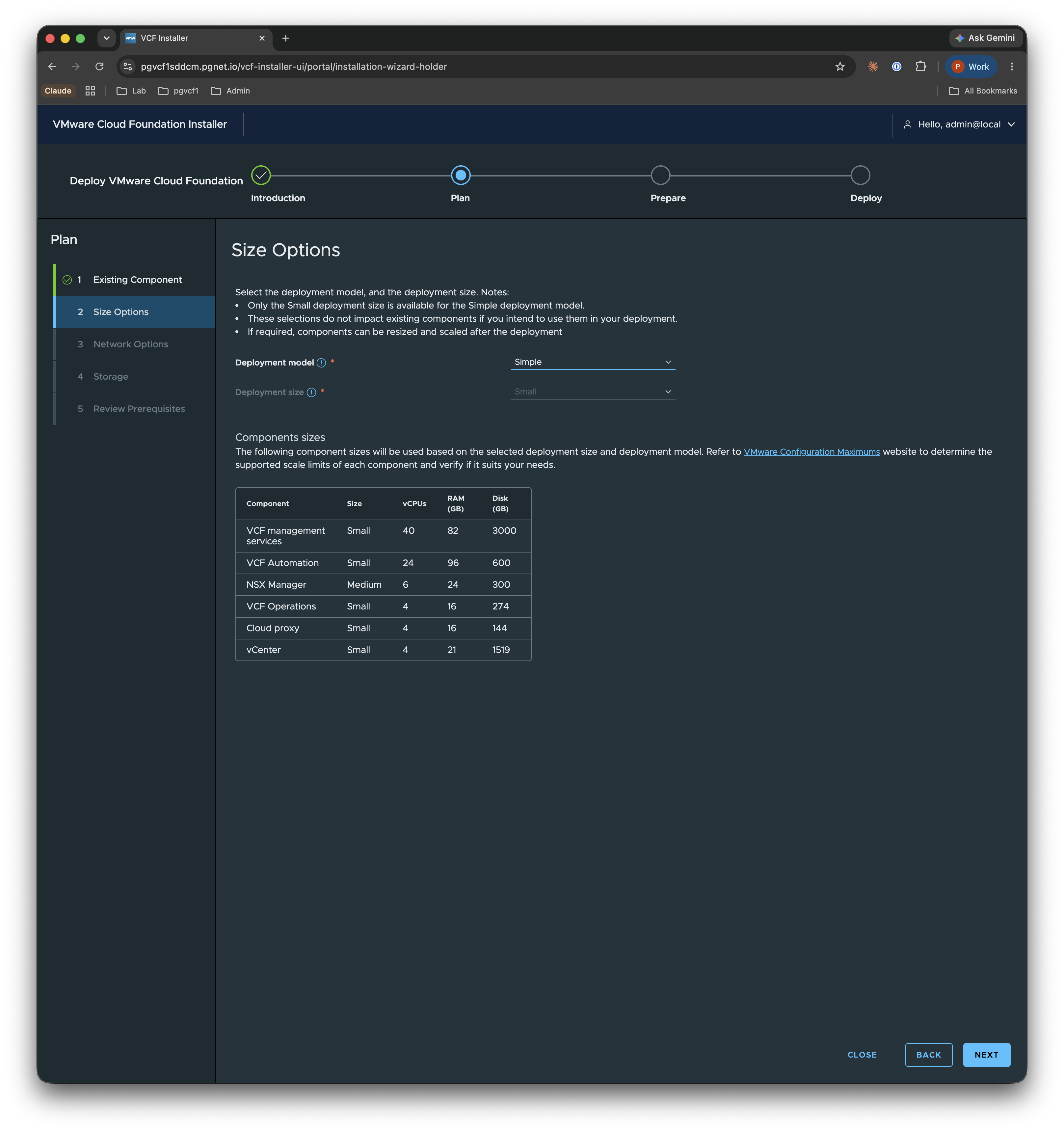
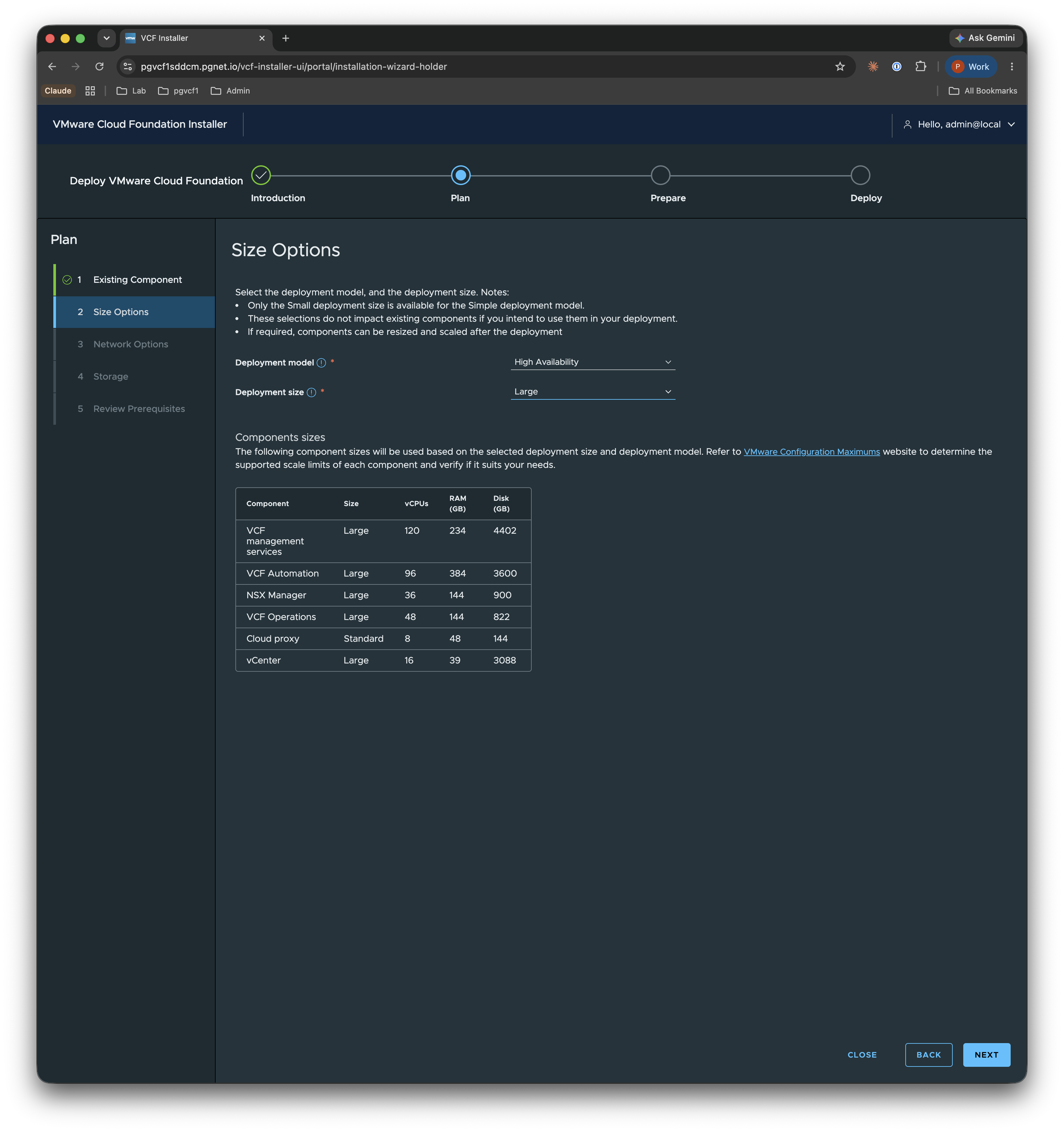
Choose a Deployment model and Deployment size. This lab uses Simple + Small.
- Simple — single-instance components; only the Small size is supported.
- High Availability — clustered components; supports Medium and Large.
The component sizing table updates with the selection. For reference, the three size profiles look like this:
| Size profile | Example: VCF management services | NSX Manager | vCenter |
|---|---|---|---|
| Small (Simple) | 40 vCPU / 82 GB / 3000 GB | Small | Small |
| Medium (HA) | 84 vCPU / 174 GB / 3600 GB | Medium | Medium |
| Large (HA) | 120 vCPU / 234 GB / 4402 GB | Large | Large |
Other size profiles for comparison
Storage
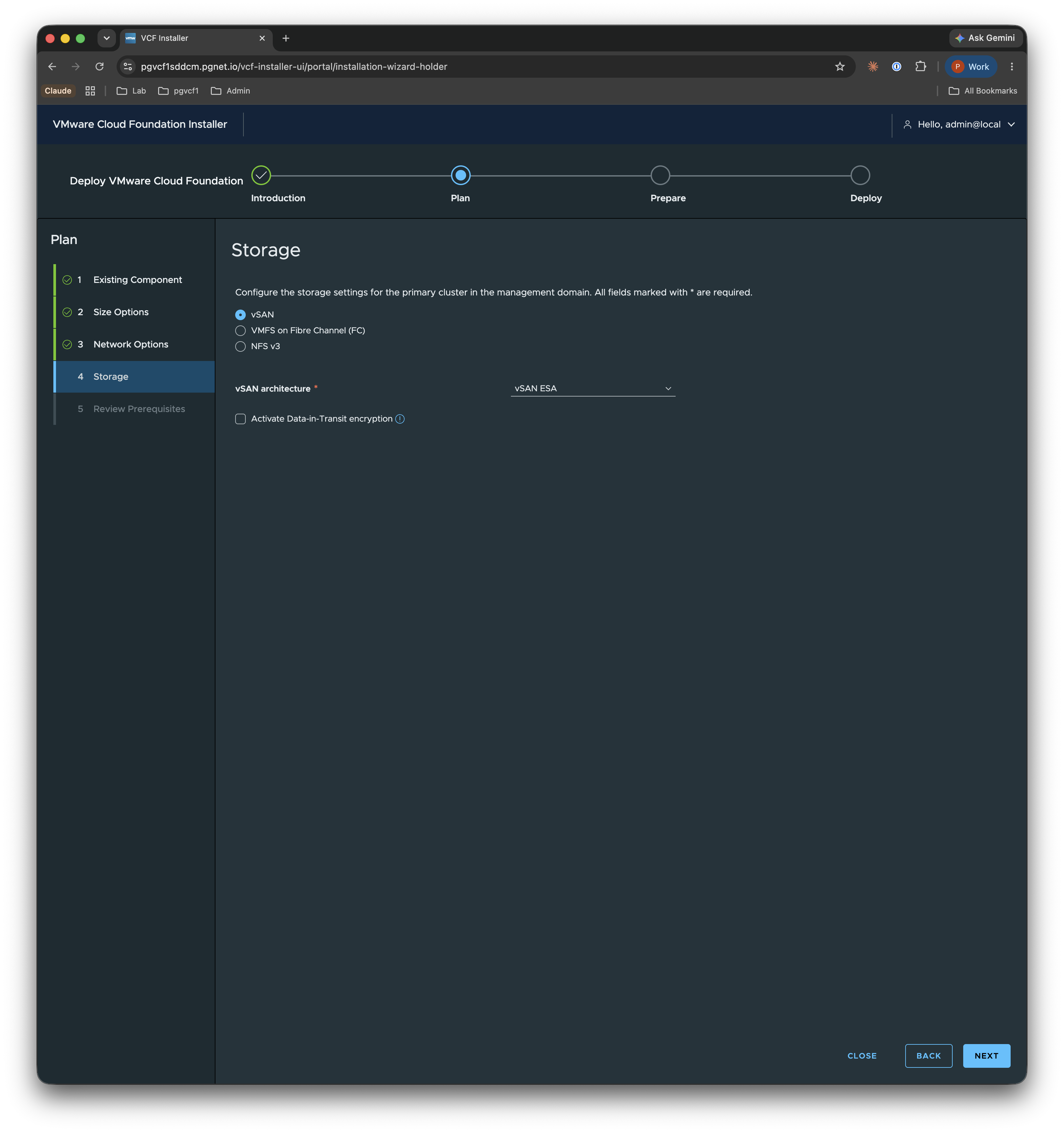
Select the primary cluster storage. This lab uses vSAN with the vSAN ESA architecture. Data-in-Transit encryption is left disabled.
Review Prerequisites
Before continuing, the wizard summarises everything the deployment needs. Work through each detail panel:
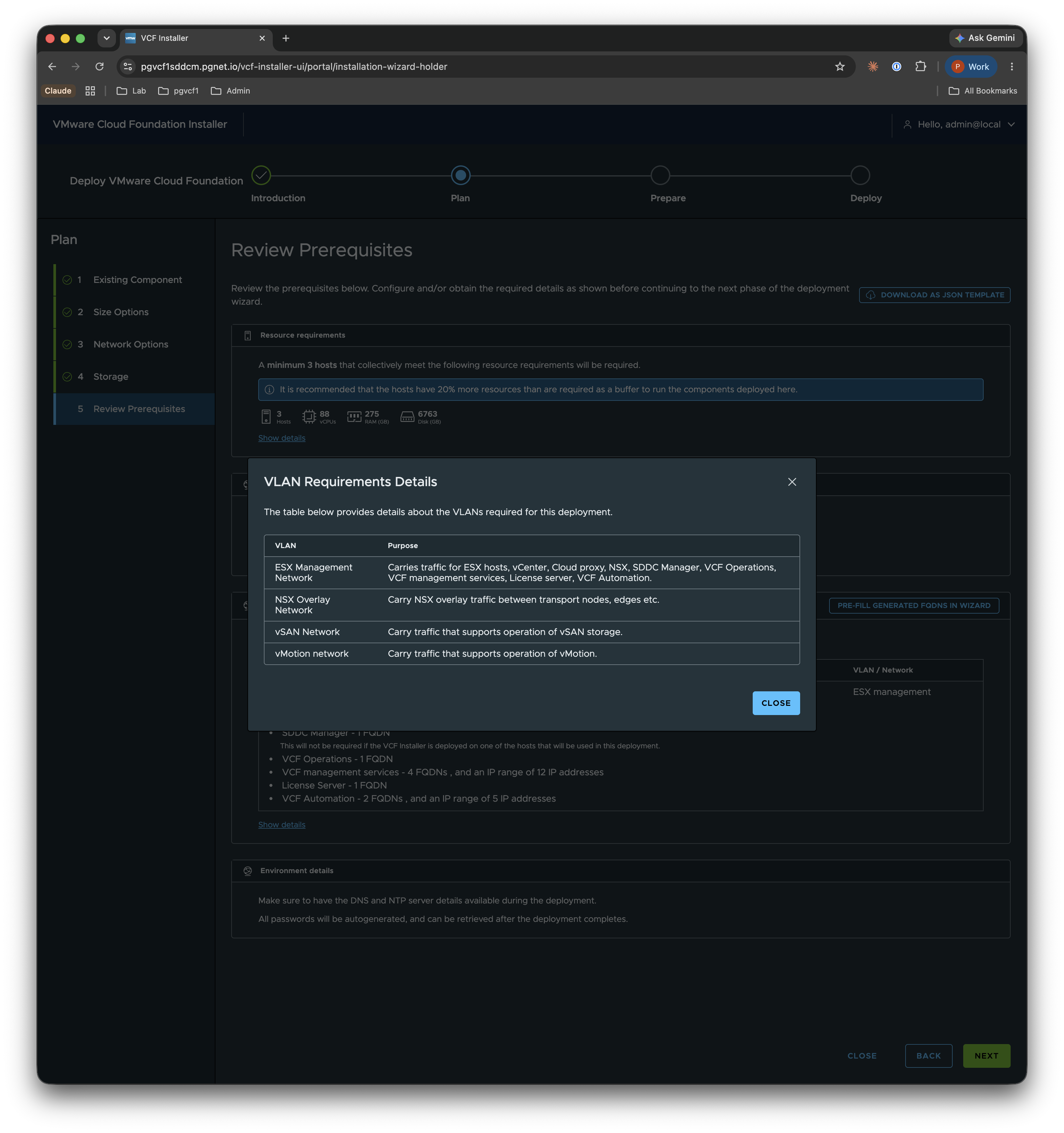
VLAN requirements — the four VLANs the deployment uses (ESXi Management, NSX Overlay, vSAN, vMotion).
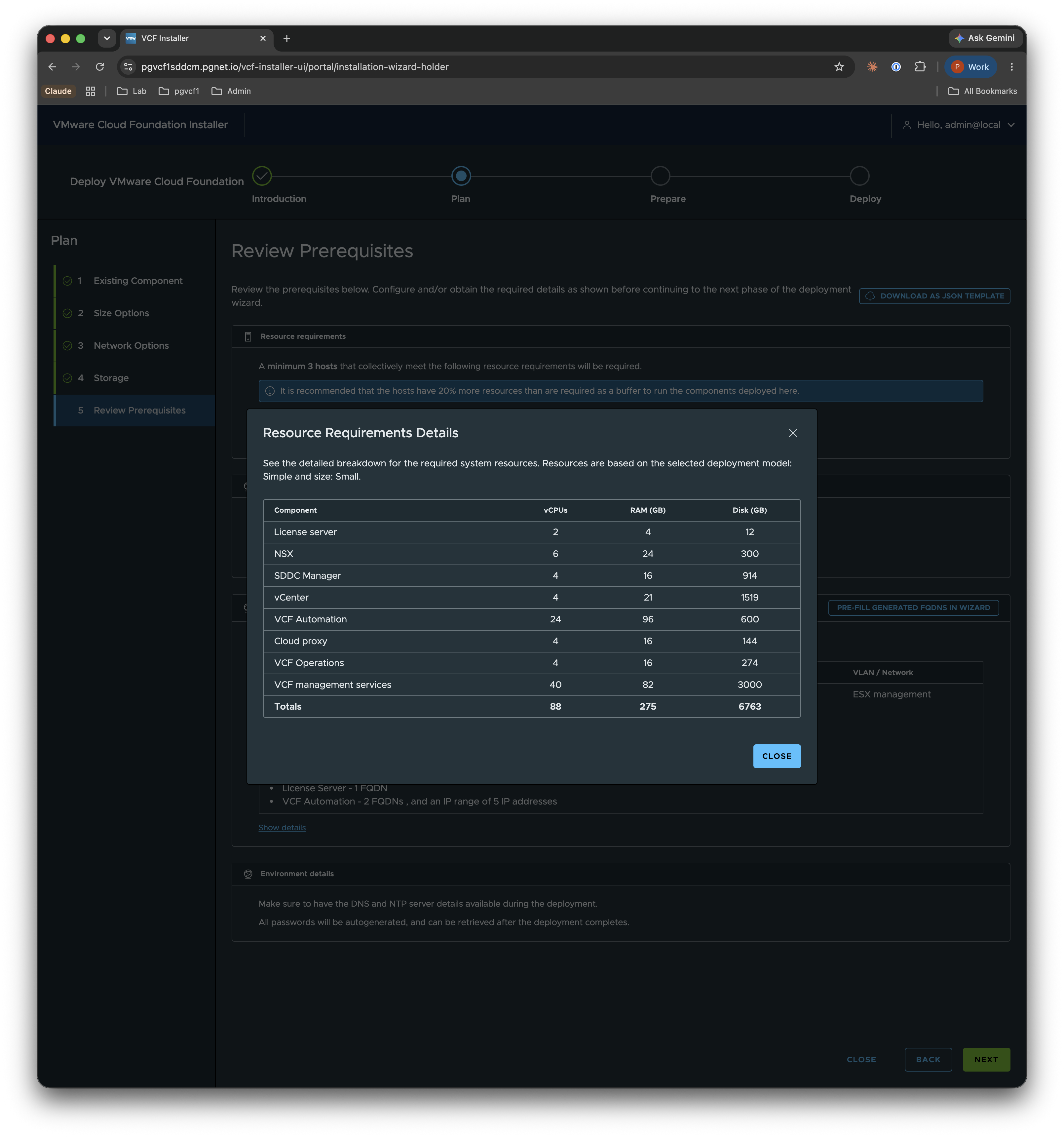
Resource requirements — the per-component vCPU / RAM / disk breakdown for the selected model+size, with totals. For Simple/Small the totals come to 88 vCPU / 275 GB RAM / 8763 GB disk.
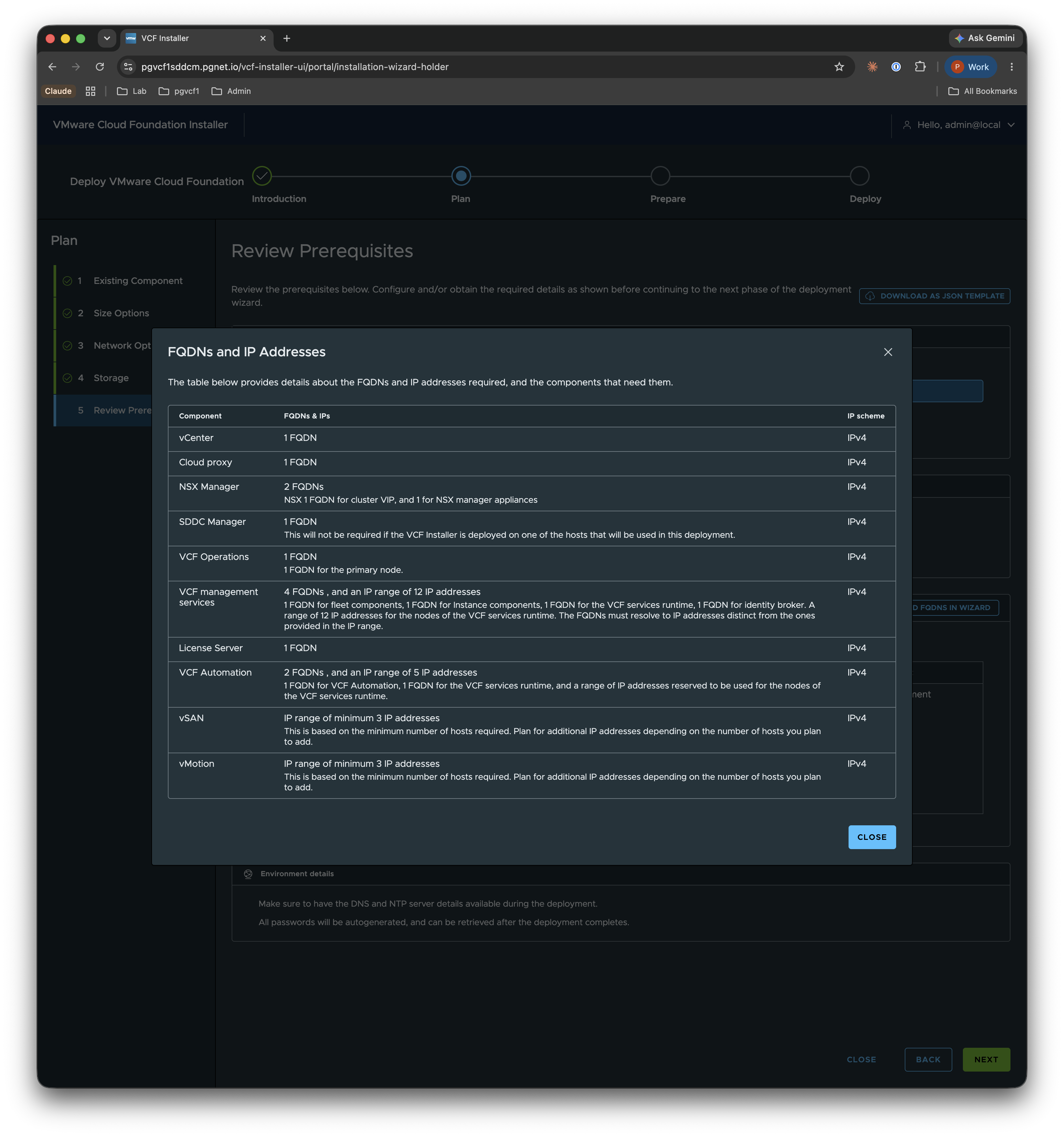
FQDNs and IP addresses — which components need an FQDN, how many IPs, and the IP scheme.
Pre-Fill Generated FQDNs — an optional but highly recommended helper. Enter a Prefix (pgvcf1), optional Suffix, and Domain Name (pgnet.io) and it generates every component FQDN from the pattern. Validate All checks them against DNS so you catch missing records before the heavy validation in Stage 4. Take care to create these exact records in your DNS as part of preparation.
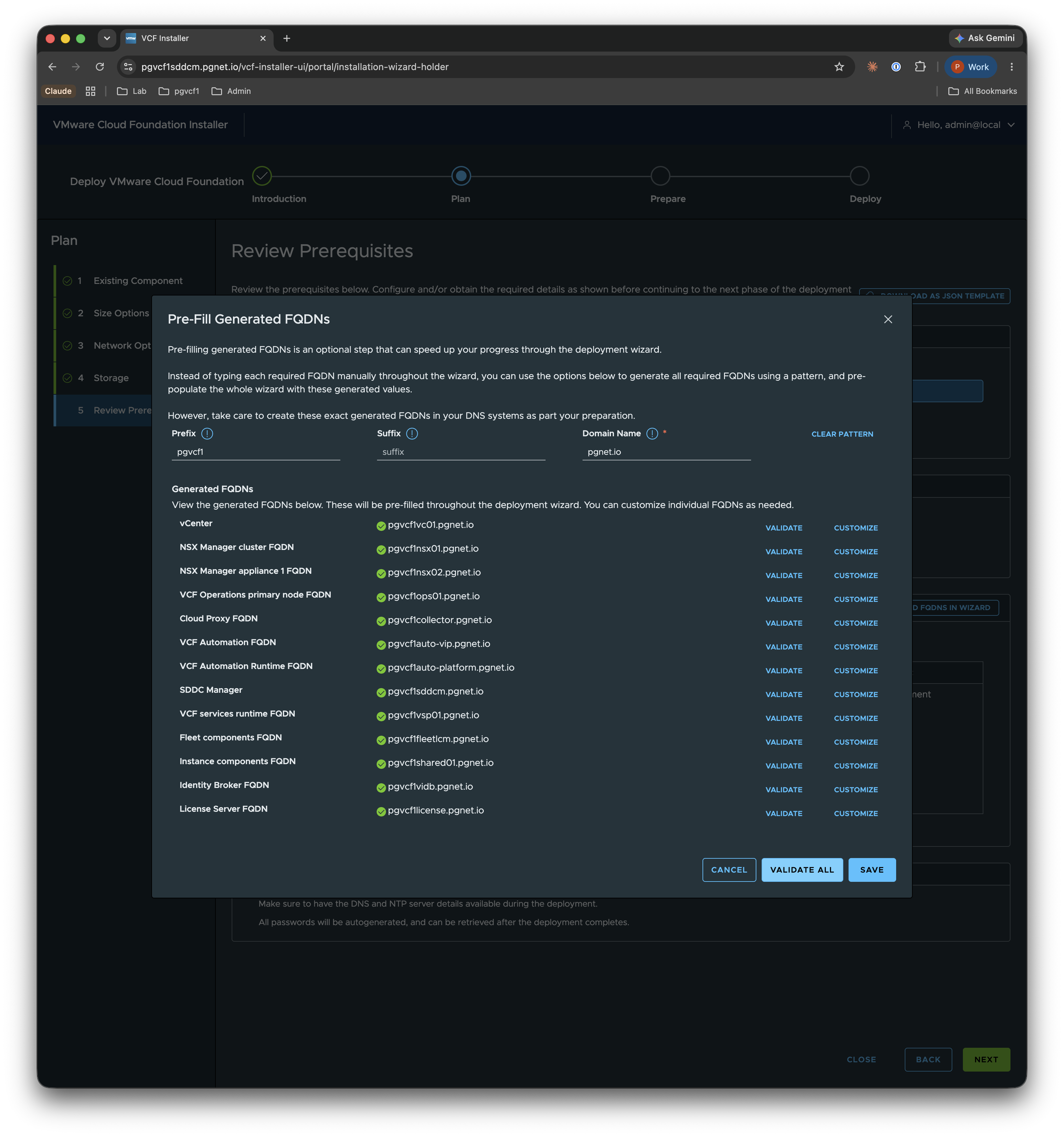
Generated FQDNs for this lab:
| Component | FQDN |
|---|---|
| vCenter | pgvcf1vc01.pgnet.io |
| NSX Manager cluster (VIP) | pgvcf1nsx01.pgnet.io |
| NSX Manager appliance 1 | pgvcf1nsx02.pgnet.io |
| VCF Operations (primary) | pgvcf1ops01.pgnet.io |
| Cloud Proxy / Ops Collector | pgvcf1collector.pgnet.io |
| VCF Automation (VIP) | pgvcf1auto-vip.pgnet.io |
| VCF Automation runtime (platform) | pgvcf1auto-platform.pgnet.io |
| SDDC Manager | pgvcf1sddcm.pgnet.io |
| VCF services runtime (Supervisor) | pgvcf1vsp01.pgnet.io |
| Fleet components (Fleet LCM) | pgvcf1fleetlcm.pgnet.io |
| Instance components (SDDC LCM) | pgvcf1shared01.pgnet.io |
| Identity Broker | pgvcf1vidb.pgnet.io |
| License Server | pgvcf1license.pgnet.io |
Stage 3 — Prepare
The Prepare stage collects the detailed configuration across nine sub-steps. Progress is saved locally as you advance.
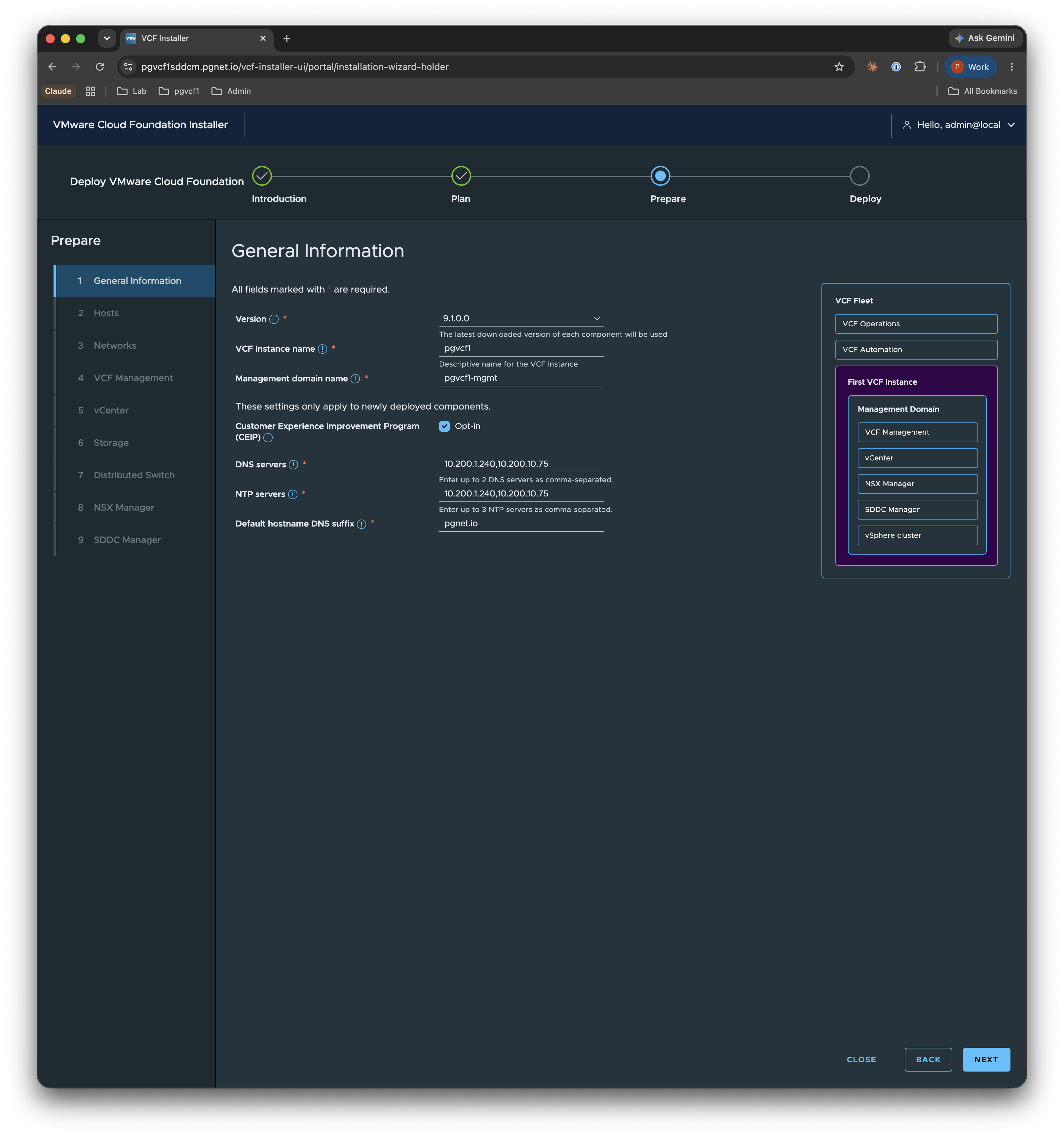
1. General Information
Set the Version (9.1.0.0), VCF instance name (pgvcf), Management domain name (pgvcf1-mgmt), CEIP opt-in, and the DNS / NTP servers and default hostname DNS suffix (pgnet.io).
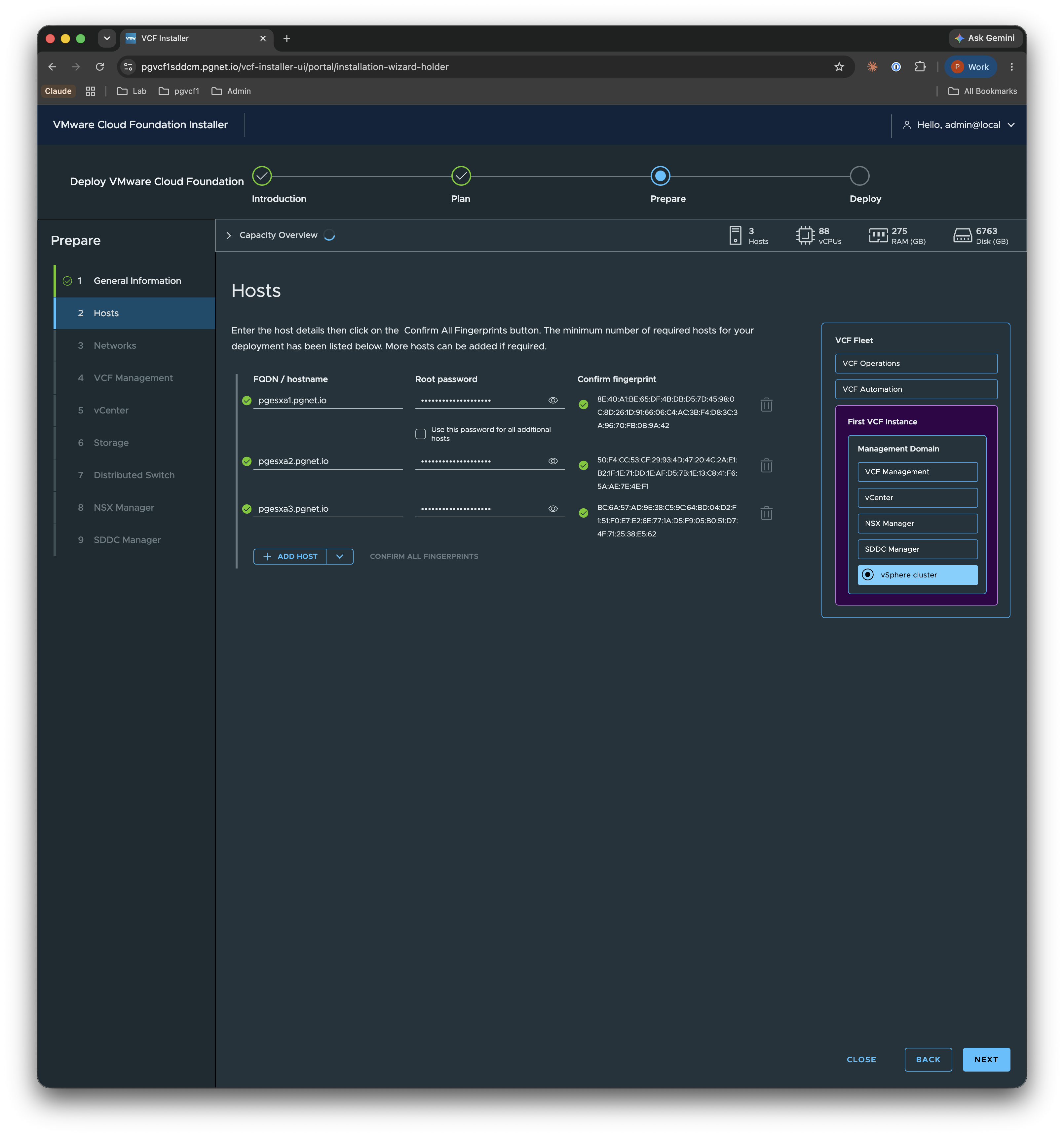
2. Hosts
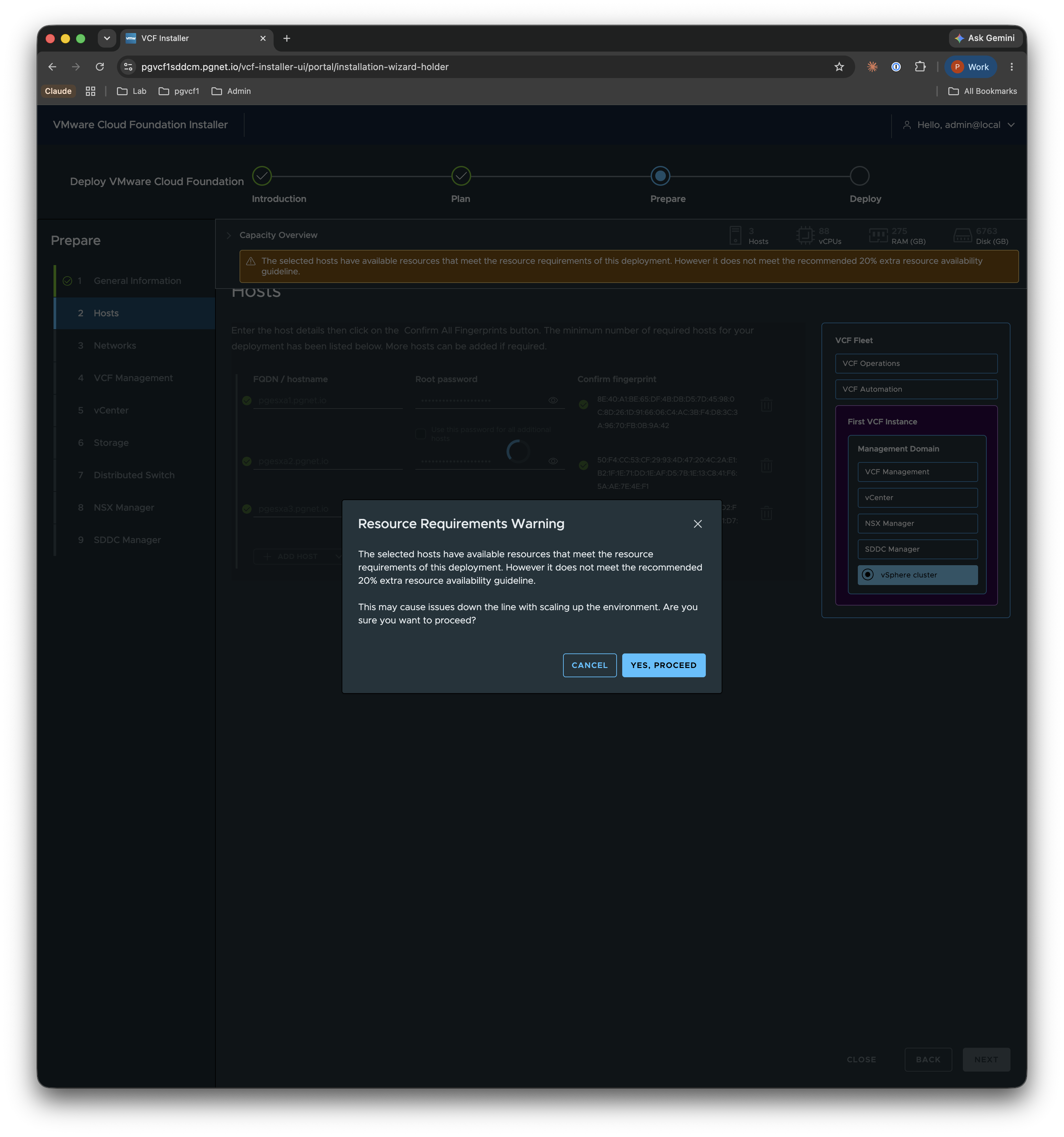
Enter the three ESXi hosts (pgesxa1, pgesxa2, pgesxa3), supply the root password, then click Confirm All Fingerprints to capture each host’s SSL thumbprint.
Lab capacity warning. On a consolidated 3-node lab cluster the installer warns that the hosts meet the minimum but not the recommended 20% resource buffer. Click Yes, Proceed to continue — see the capacity note below.
3. Networks
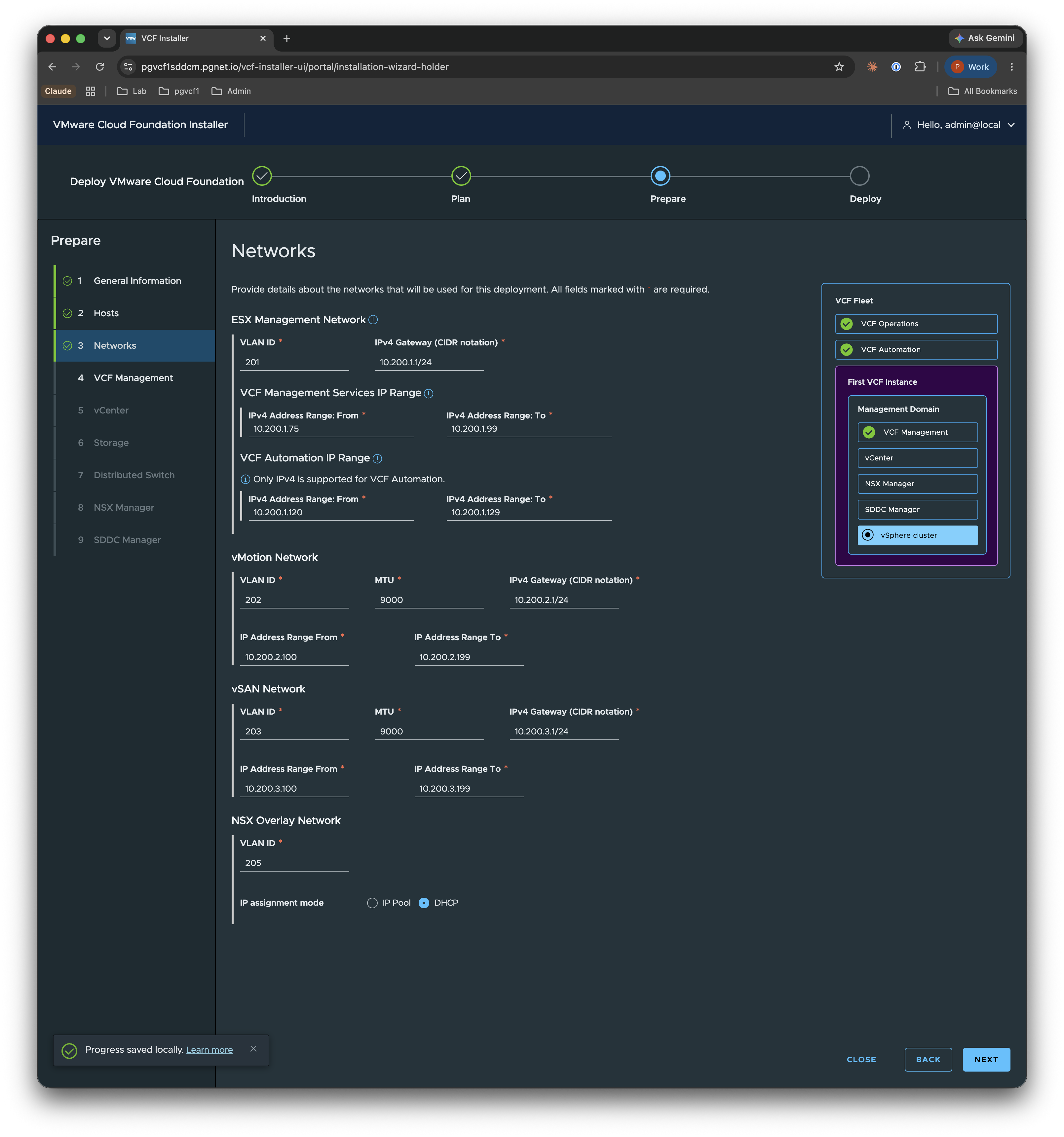
Provide the four networks. Management, vMotion, and vSAN all run jumbo frames (MTU 9000) end-to-end.
| Network | VLAN | Subnet / Gateway | MTU | IP Range |
|---|---|---|---|---|
| ESX Management | 201 | 10.200.1.0/24 · .1 | 9000 | — |
| vMotion | 202 | 10.200.2.0/24 · .1 | 9000 | 10.200.2.100–199 |
| vSAN | 203 | 10.200.3.0/24 · .1 | 9000 | 10.200.3.100–199 |
| NSX Overlay (transport) | 205 | — | — | IP Pool |
| VCF Management Services | 201 | 10.200.1.75–99 | — | (pool) |
| VCF Automation | 201 | 10.200.1.120–129 | — | (pool) |
4. VCF Management
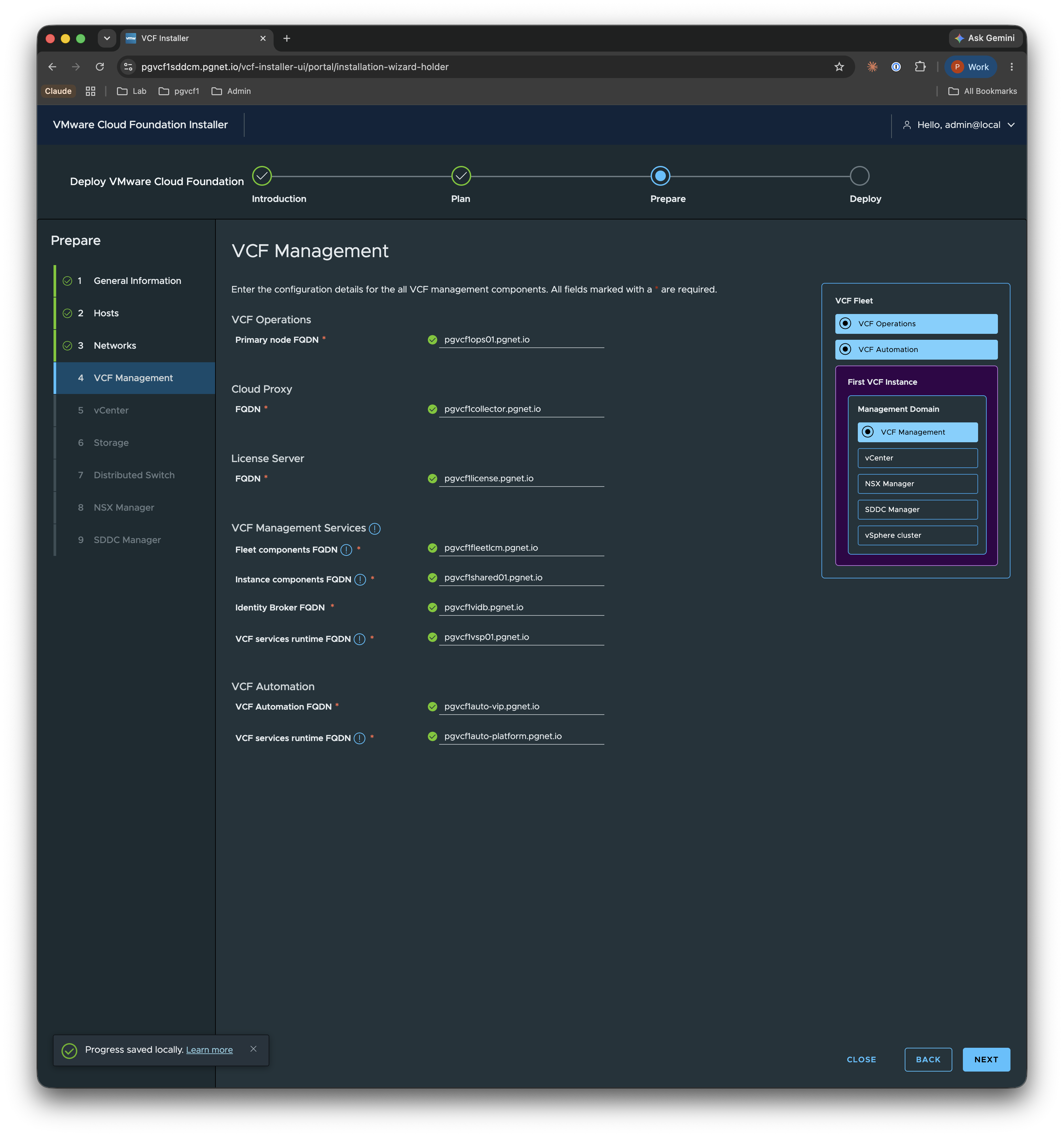
Confirm the FQDNs for the management-plane components (these are pre-filled from Stage 2):
- VCF Operations primary node —
pgvcf1ops01.pgnet.io - Cloud Proxy —
pgvcf1collector.pgnet.io - License Server —
pgvcf1license.pgnet.io - VCF Management Services — Fleet
pgvcf1fleetlcm, Instancepgvcf1shared01, Identity Brokerpgvcf1vidb, services runtimepgvcf1vsp01 - VCF Automation — VIP
pgvcf1auto-vip, services runtimepgvcf1auto-platform
5. vCenter
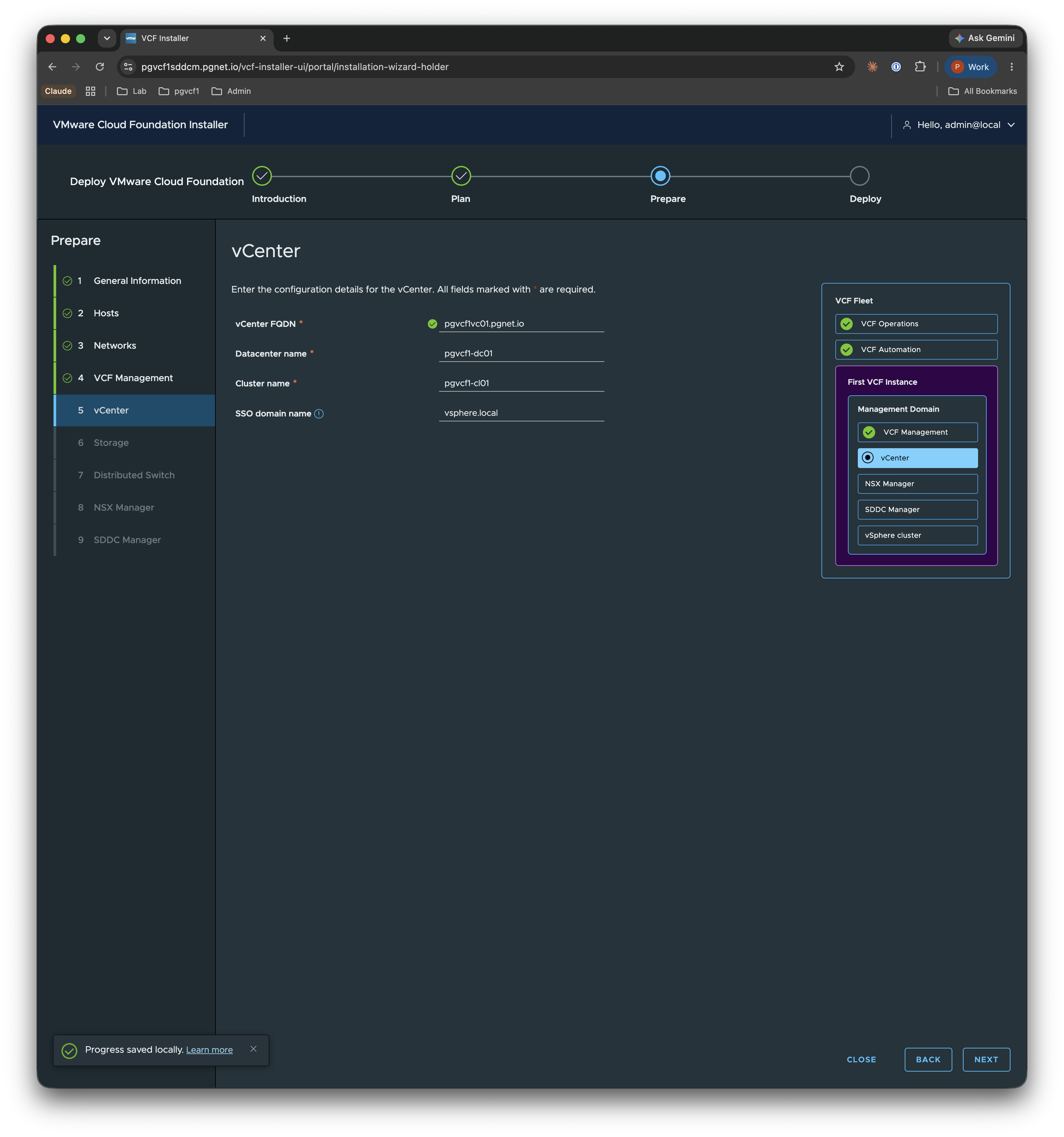
| Setting | Value |
|---|---|
| vCenter FQDN | pgvcf1vc01.pgnet.io |
| Datacenter name | pgvcf1-dc01 |
| Cluster name | pgvcf1-cl01 |
| SSO domain | vsphere.local |
6. Storage
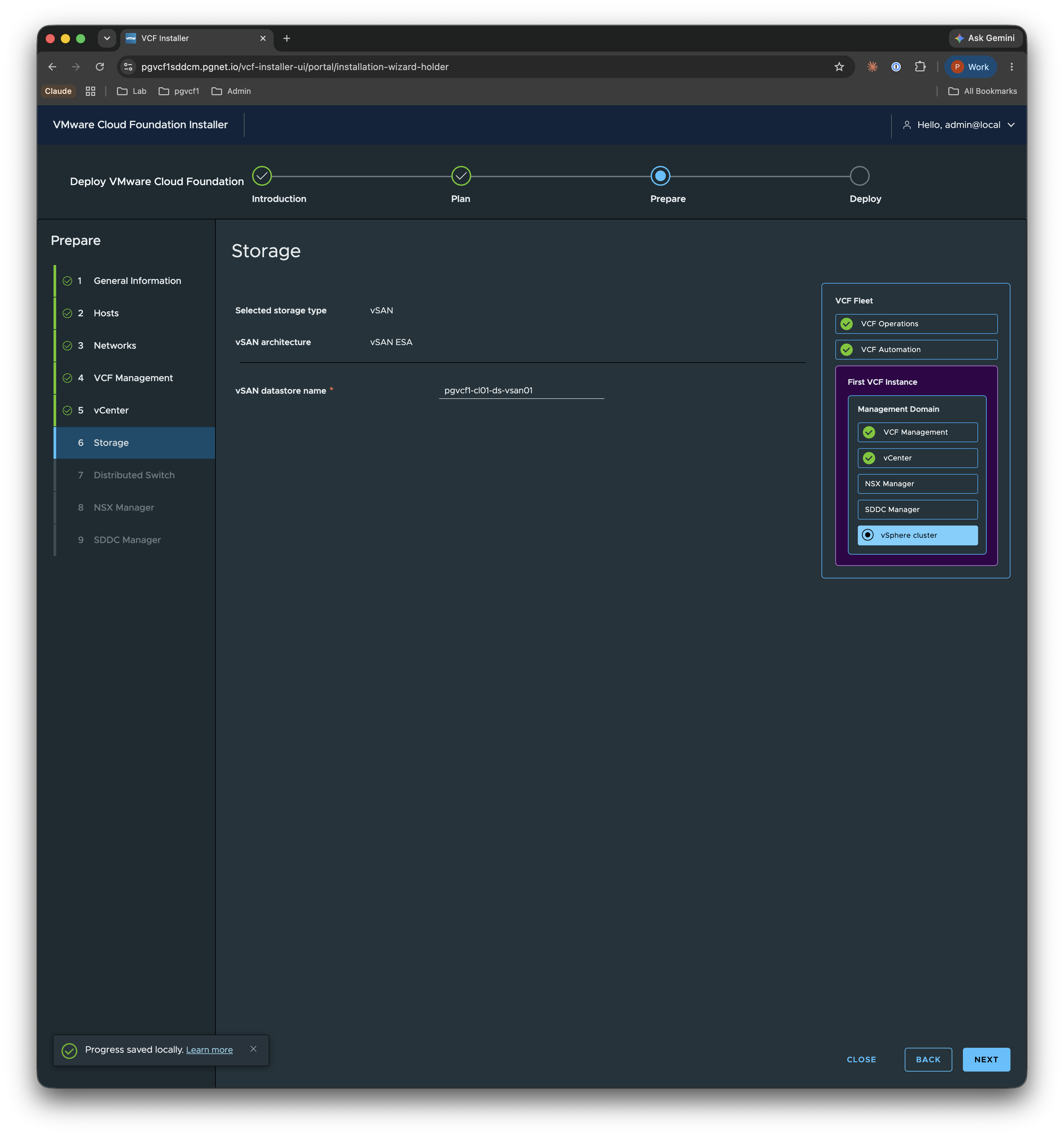
Confirm the vSAN settings: storage type vSAN, architecture vSAN ESA, datastore name pgvcf1-cl01-ds-vsan01.
7. Distributed Switch
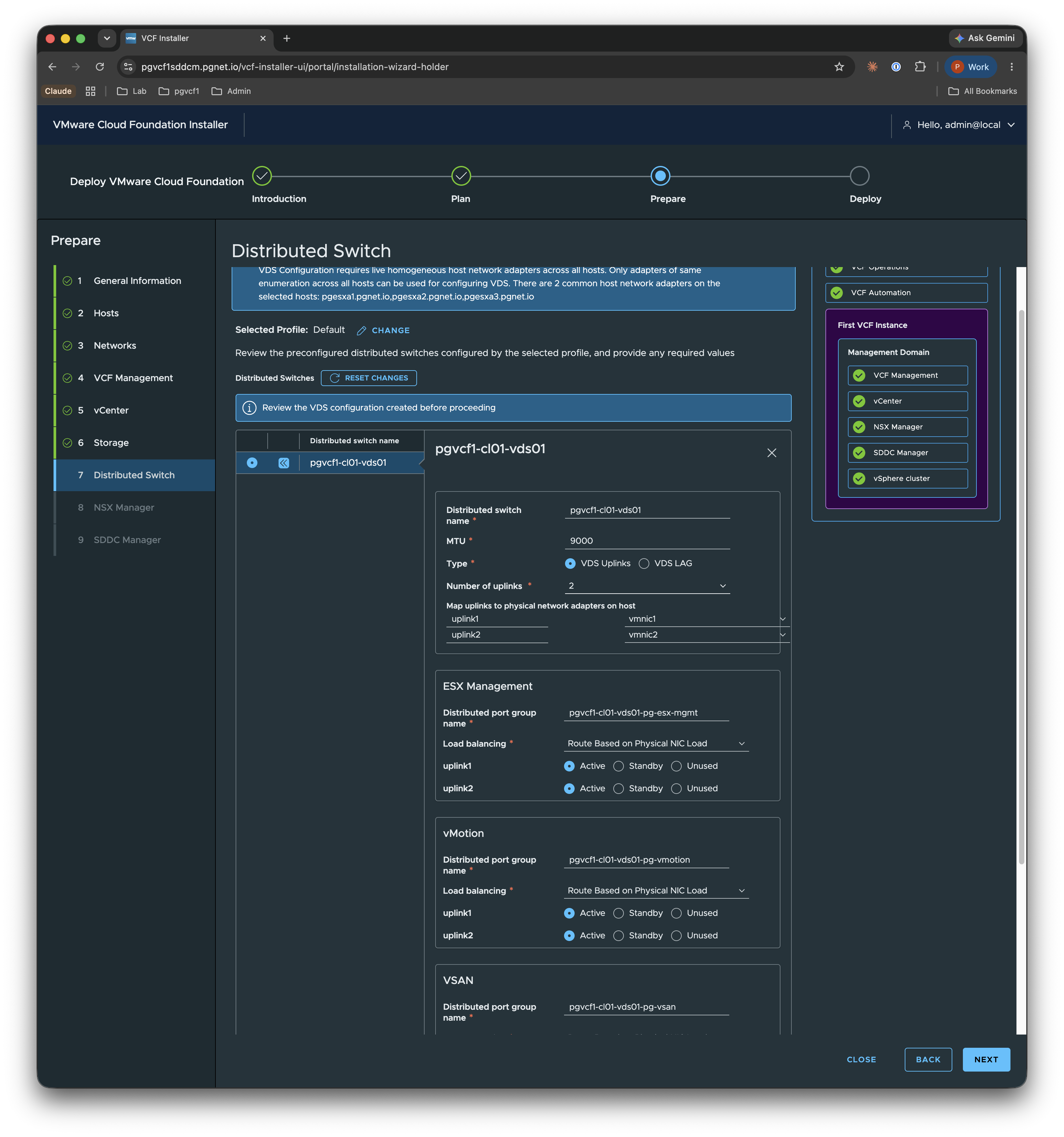
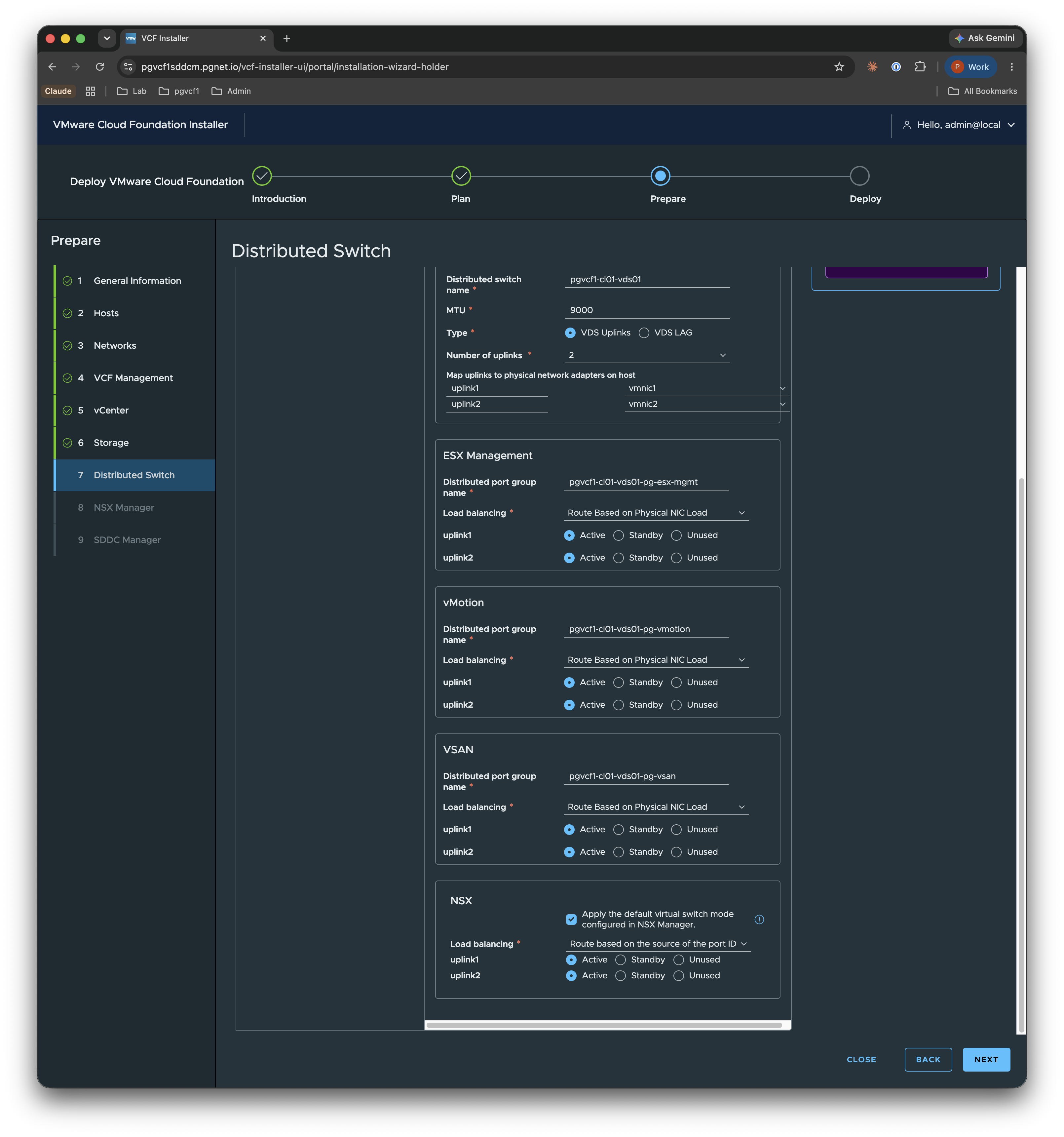
A single VDS (pgvcf1-cl01-vds01, MTU 9000) carries Management, vMotion, and vSAN. Two uplinks map vmnic1 → uplink1 and vmnic2 → uplink2, with Route Based on Physical NIC Load teaming on the data port groups.
Scroll down to the NSX section and leave Apply the default virtual switch mode configured in NSX Manager enabled — this prepares the VDS to carry the NSX overlay transport zone (overlay-tz-mgmt-nsxt).
8. NSX Manager
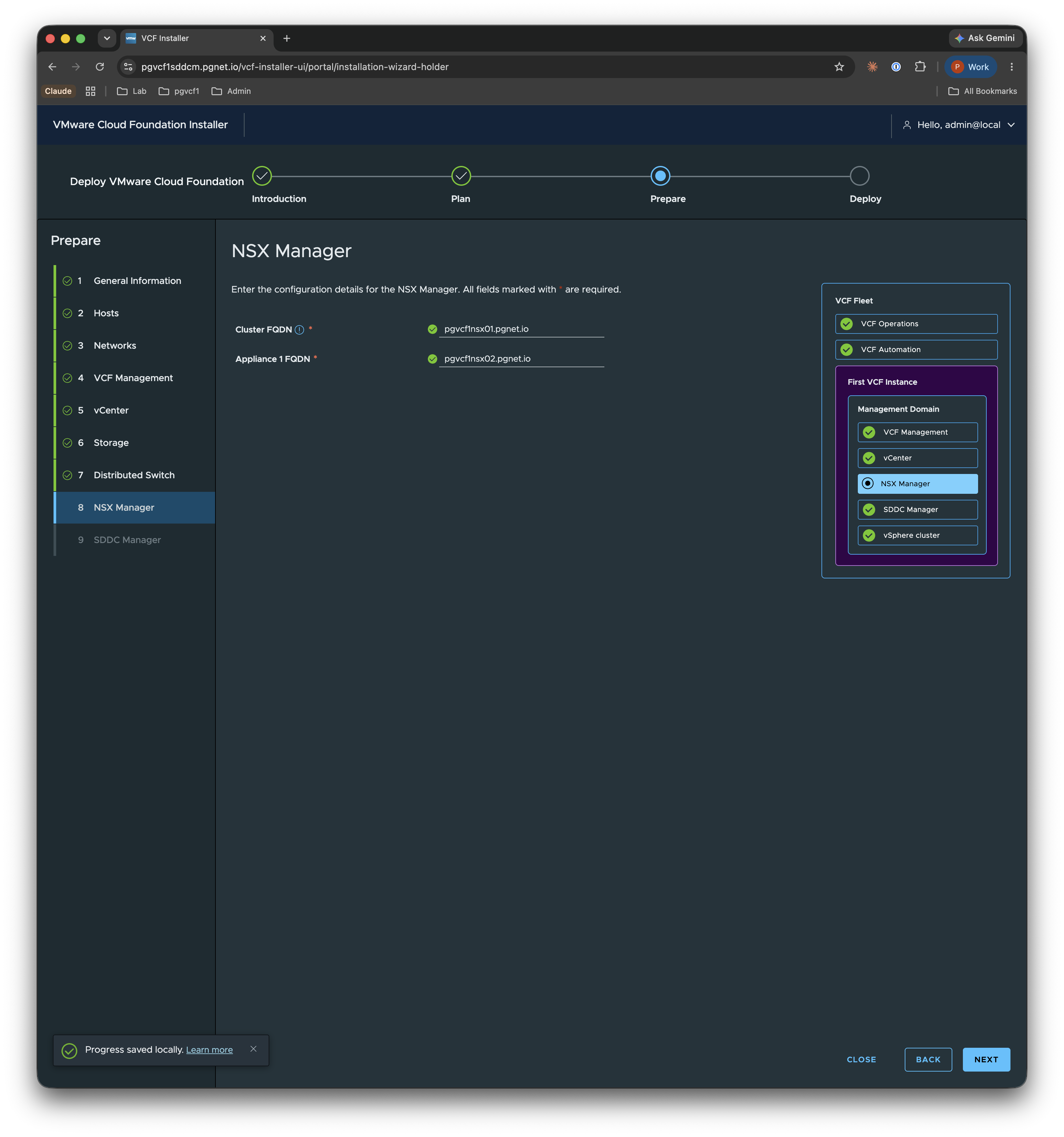
| Setting | Value |
|---|---|
| Cluster FQDN (VIP) | pgvcf1nsx01.pgnet.io |
| Appliance 1 FQDN | pgvcf1nsx02.pgnet.io |
NSX Manager is deployed at the medium size with overlay transport on VLAN 205.
9. SDDC Manager
Confirm the SDDC Manager FQDN (pgvcf1sddcm.pgnet.io) and set the administrator password. As noted, the Installer appliance is converted into the SDDC Manager during deployment.
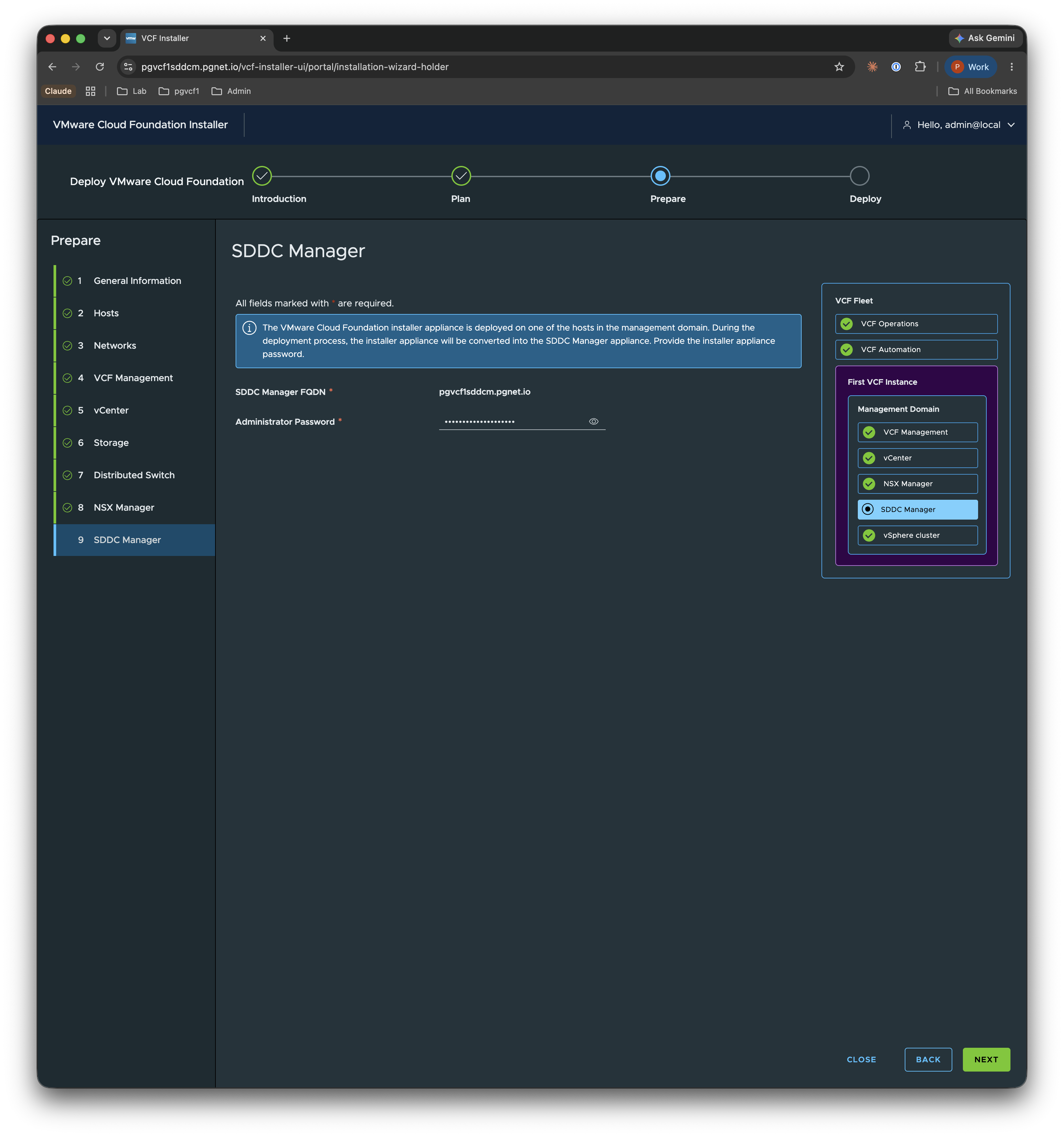
Stage 4 — Deploy
Review
Review the complete configuration summary. If anything is wrong, navigate back to the relevant Prepare step (or download the JSON spec, edit, and re-upload).
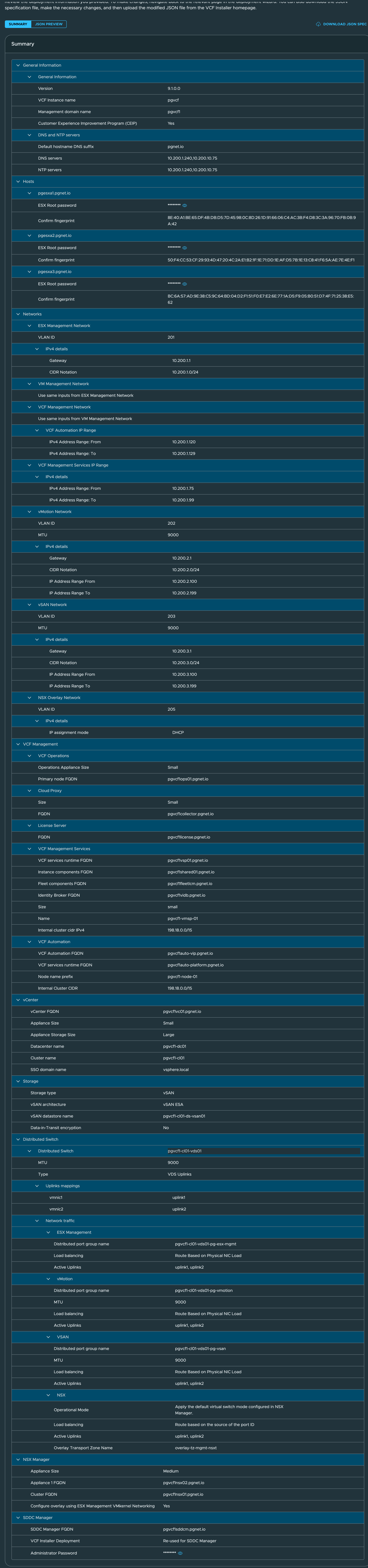
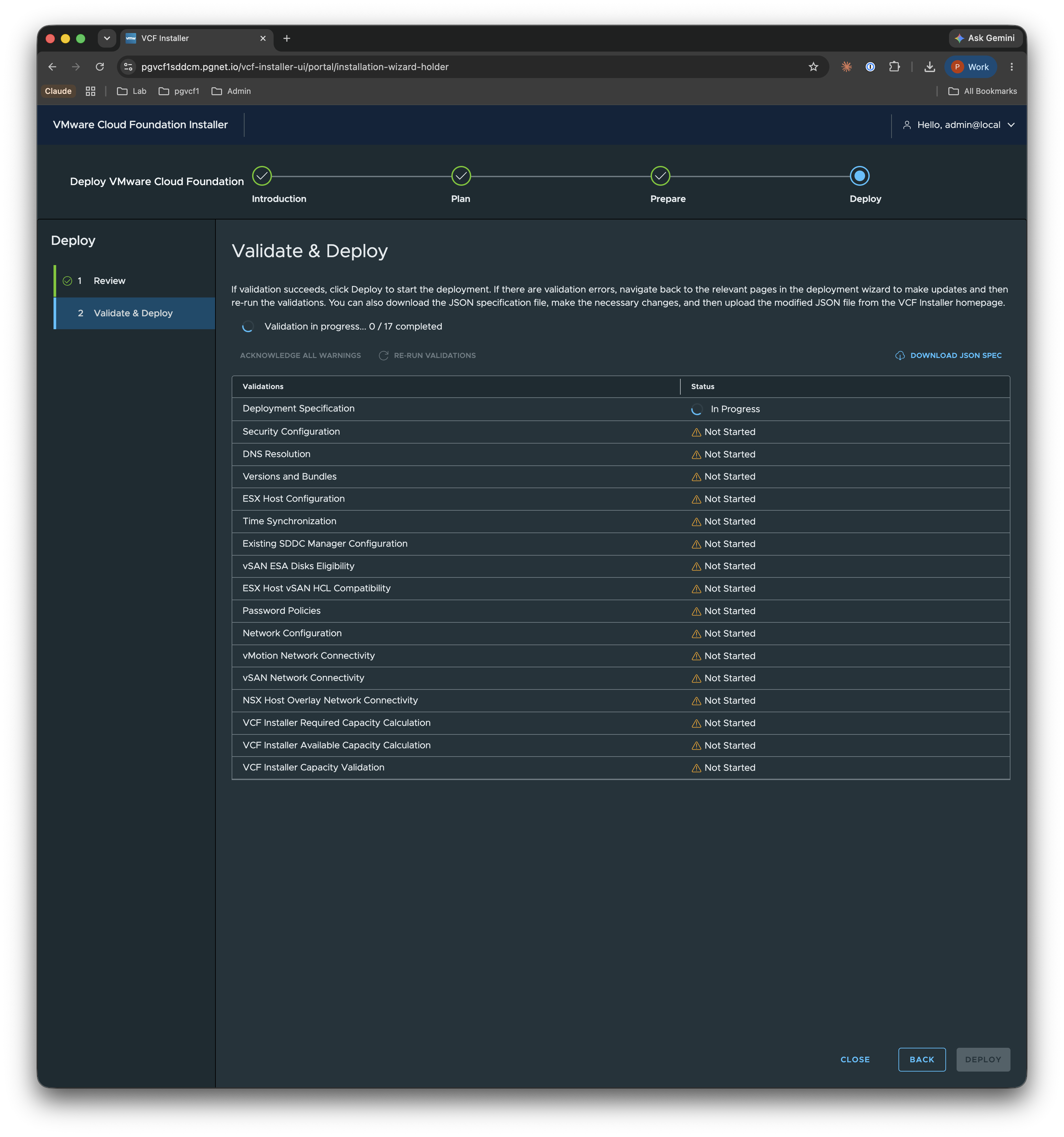
Validate & Deploy
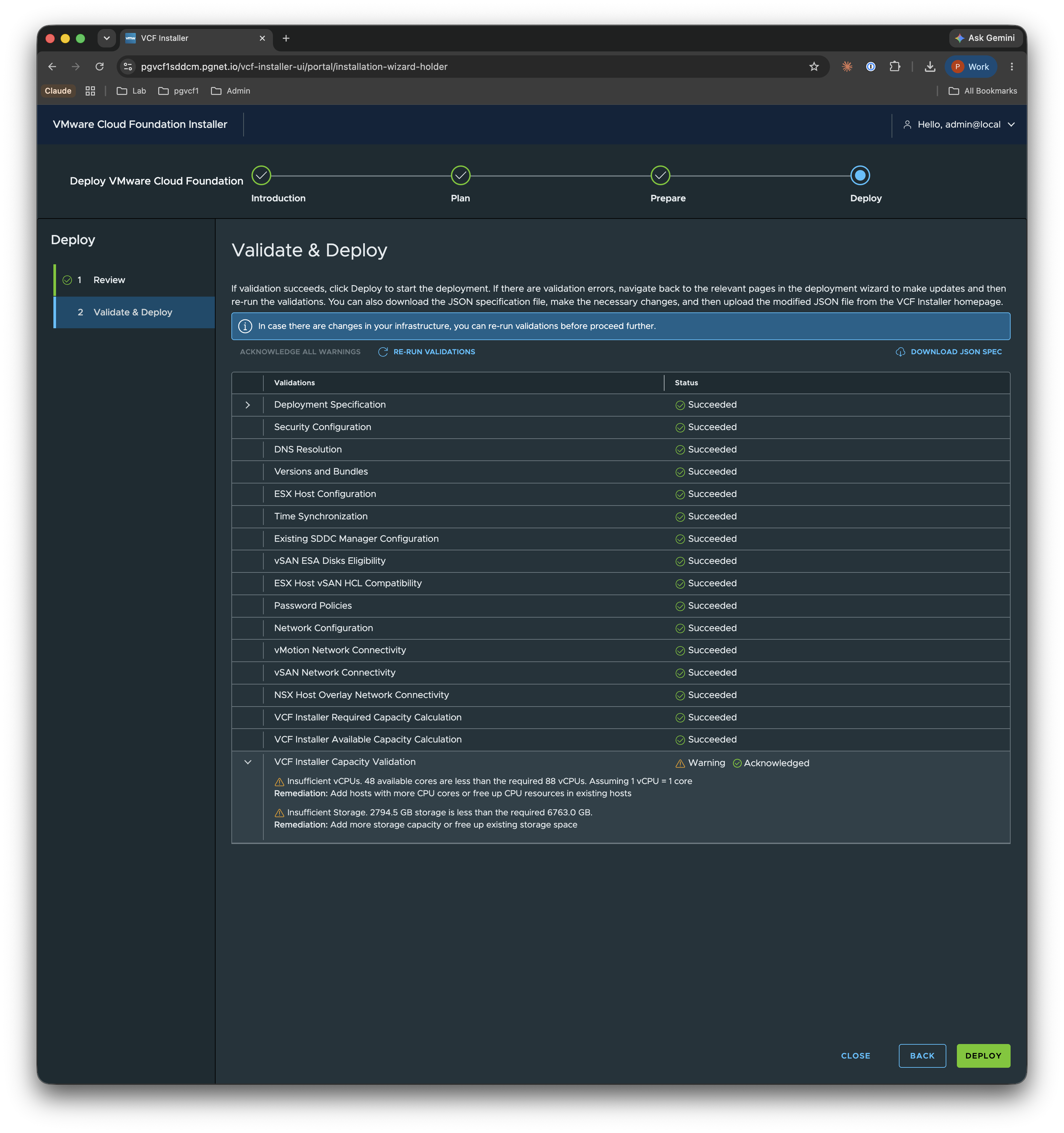
Click to run validation. The installer executes 17 checks — deployment spec, security config, DNS resolution, versions/bundles, ESX host config, time sync, existing SDDC Manager config, vSAN ESA disk eligibility, ESX host vSAN HCL compatibility, password policies, network config, vMotion/vSAN/NSX overlay connectivity, and the three VCF Installer capacity calculations.
On the lab cluster all checks Succeed except VCF Installer Capacity Validation, which returns a Warning (insufficient vCPU and storage vs the recommended totals — see below). Expand it, read the remediation, and click Acknowledge to clear the gate.
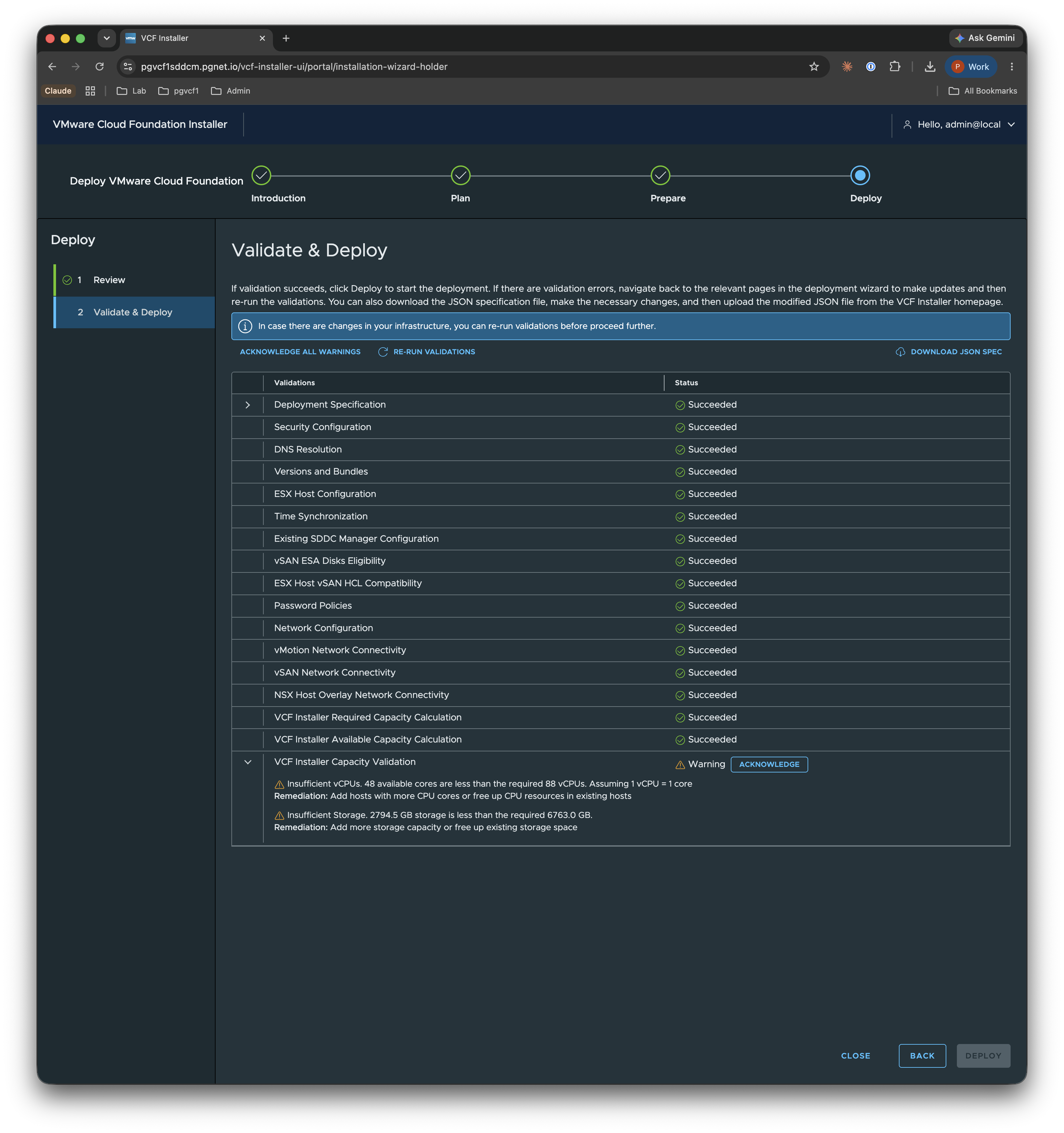
Once acknowledged, the Deploy button is enabled.
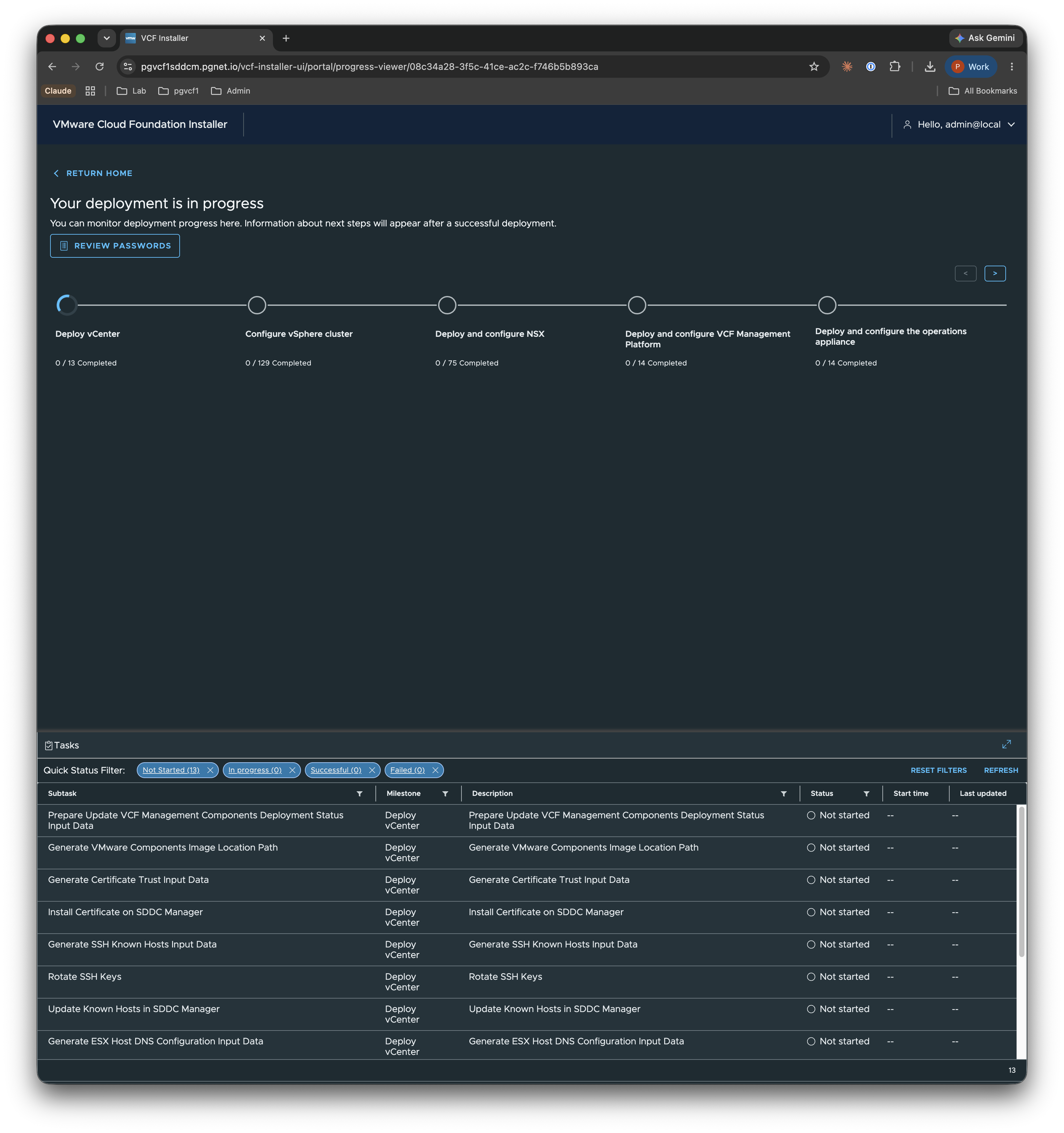
Deployment in progress
Click Deploy. The installer converts itself into SDDC Manager and builds the fleet across five milestones — Deploy vCenter → Configure vSphere cluster → Deploy and configure NSX → Deploy and configure VCF Management Platform → Deploy and configure the operations appliance — tracked in the progress viewer and task list.
- Timeframe: expect ~2–3 hours.
- Credentials: use Review Passwords on the progress page; a full reference is in Appendix E: Appliance Credentials Reference.
Lab Note: Capacity Oversubscription
The consolidated 3-node lab cluster is deliberately under the recommended VCF resource buffer. During Stage 4 the VCF Installer Capacity Validation flags:
- Insufficient vCPU — 48 available cores < 88 required vCPUs (assuming 1 vCPU = 1 core).
- Insufficient storage — 2794.5 GB available < 6763.0 GB required.
These are Warnings, not errors — acknowledging them lets the deployment proceed and the components run fine for a lab thanks to vSphere CPU/memory over-commit and thin provisioning. In production you would add hosts / capacity rather than acknowledge. This is the same “lab workaround” pattern used elsewhere in the series (vSAN ESA Mock VIB, AMD Ryzen tweaks).
Deployment Spec Reference
The full deployment can be driven from a JSON spec (download it from the wizard via Download JSON Spec, edit, and re-upload). Key settings:
| Category | Setting | Value |
|---|---|---|
| General | SDDC ID | pgvcf1 |
| Instance name | pgvcf | |
| Version | 9.1.0.0 | |
| Services | DNS | 10.200.1.240, 10.200.10.75 |
| NTP | 10.200.1.240, 10.200.10.75 | |
| vCenter | Hostname | pgvcf1vc01.pgnet.io |
| SSO domain / size | vsphere.local / small | |
| Cluster | Datacenter / Cluster | pgvcf1-dc01 / pgvcf1-cl01 |
| vSAN ESA | Enabled (FTT 1) | |
| Datastore | pgvcf1-cl01-ds-vsan01 | |
| NSX | VIP / Appliance | pgvcf1nsx01 / pgvcf1nsx02 |
| Size / Overlay VLAN | medium / 205 | |
| Operations | Ops (master) | pgvcf1ops01.pgnet.io |
| Cloud Proxy / Collector | pgvcf1collector.pgnet.io | |
| Automation | VIP / Platform | pgvcf1auto-vip / pgvcf1auto-platform |
| IP Pool | 10.200.1.120–129 | |
| Supervisor | Platform / Pool | pgvcf1vsp01 / 10.200.1.75–99 |
| Hosts | ESXi | pgesxa1, pgesxa2, pgesxa3 |
| Networking | Mgmt / vMotion / vSAN | VLAN 201 / 202 / 203 |
| MTU (data) | 9000 | |
| SDDC Manager | Hostname | pgvcf1sddcm.pgnet.io (installer-converted) |
The complete, importable JSON spec used in this deployment is kept in its own page so this guide stays readable: Appendix: Deployment Spec (JSON).
Official Documentation
The authoritative, supported procedure for this stage lives in the Broadcom TechDocs:
- Deploying a New VCF or vSphere Foundation Platform — VCF 9.1 deployment guide (the VCF Installer wizard covered above).
- VMware Cloud Foundation 9.1 documentation — full 9.1 doc set (planning & prep, administration, lifecycle).
This guide records a specific lab build and intentionally takes shortcuts (consolidated 3-node cluster, acknowledged capacity warnings) that the official docs do not. Always check the docs above for current requirements before a production deployment.