The VCF Installer: Drive It from JSON, Check It in the Wizard
The VCF 9.1.1 Installer from first login to pressing Deploy — the choices that make the build distributed, two validation runs, and why a green validation still leaves one network for you to prove.
VCF 9.1.1 lab rebuild. Part of the follow-along guide, published live as the build happens.
📘 Official documentation. This is a lab walkthrough, not a replacement for the vendor docs. For the authoritative, supported procedures, follow Broadcom’s VMware Cloud Foundation 9.1 documentation. Where this guide and the official docs differ, the official docs win.
Where we are: after kickstart and networks, names and addresses. The machines are ESX 9.1.1 hosts that pass their own readiness check, and every VLAN, name and address the Installer asks for exists. This page covers the VCF Installer appliance from first login to the moment Deploy is pressed.
Written against VCF Installer 9.1.1.0 build 25713928. Everything here was done in the Installer’s web UI and on the build workstation. Nothing was run on an ESX host by hand.
What is involved
None of these is part of VCF.
| Component | What it is | What it does here |
|---|---|---|
| The Installer’s home | The host the Installer appliance runs on | It is not one of the four hosts being deployed. It sits on the local disk of a workload-cluster host, kept through that host’s reinstall. That is why the wizard asks for an SDDC Manager FQDN: its own note says this “will not be required if the VCF Installer is deployed on one of the hosts that will be used in this deployment”. |
| The depot | The lab’s offline software depot, on the NAS | Serves the VCF binaries to the Installer over HTTPS with basic authentication. |
| The rendered spec | The real deployment JSON | A script fills a template of placeholders from the inventory and the secret store, and writes the result to a git-ignored directory readable only by me. Only the template is ever kept in git. |
| The inventory | The per-host YAML files | The same files the kickstarts are generated from. |
The spec scripts named on this page, render_spec.py and netcheck.py, are not published yet.
Pattern: drive it from JSON, check it in the wizard
The 9.1.1 Installer takes either a JSON file or the wizard. The docs put it plainly: “Using a JSON specification file allows for extra customizations that are not available in the deployment wizard.”
This build found a reason for each half of the rule.
A fix made in the wizard is invisible to the next build. In the previous build the wizard’s default for host TEP addressing, DHCP, failed validation. I corrected it by hand in the wizard, so the fix never reached the spec. This rebuild inherited exactly the same gap. This time the correction went into the JSON template, with a test that fails if it is ever removed.
The wizard catches what a JSON reviewer misses. Nobody reading the JSON noticed that a key was absent. Walking the wizard page by page after loading the file showed “DHCP” selected on the overlay network, in plain sight.
So: load the JSON, then read every wizard page against it.
📖 Reference — VMware Cloud Foundation 9.1 documentation, Deployment › Use a JSON Specification File to Deploy VMware Cloud Foundation, pp. 2456–2458.
Step 1 — Connect the depot and download the binaries
Where: the Installer, home › Depot settings and binary management › Offline Depot › Configure.
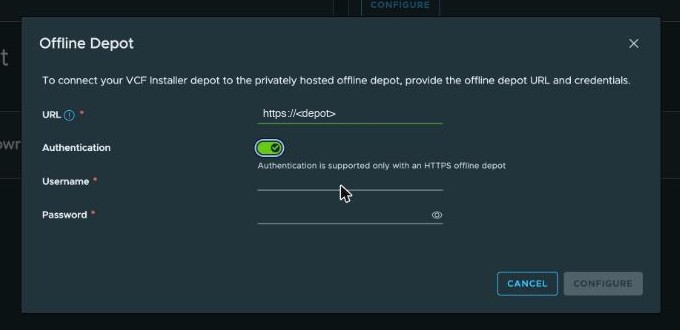
Authentication is only offered for an HTTPS depot. With the connection active, Binary Management lists the sixteen VCF 9.1.1.0 components. Select them and download. The Download Summary shows when a version is complete:
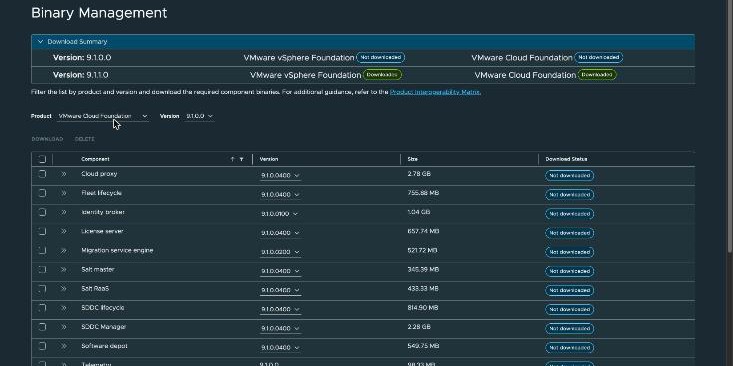
One thing to know while you wait: the login is per tab. A second tab of the same browser lands on the login page, so you cannot use one to watch the download.
Step 2 — Plan: the choices that make this build distributed
Where: the Installer wizard › Plan.
| Wizard page | Choice | Why |
|---|---|---|
| Deployment path | Deploy a new VCF fleet | Greenfield. |
| Size options | Simple · Small | Four hosts. High availability does not fit this cluster’s storage. |
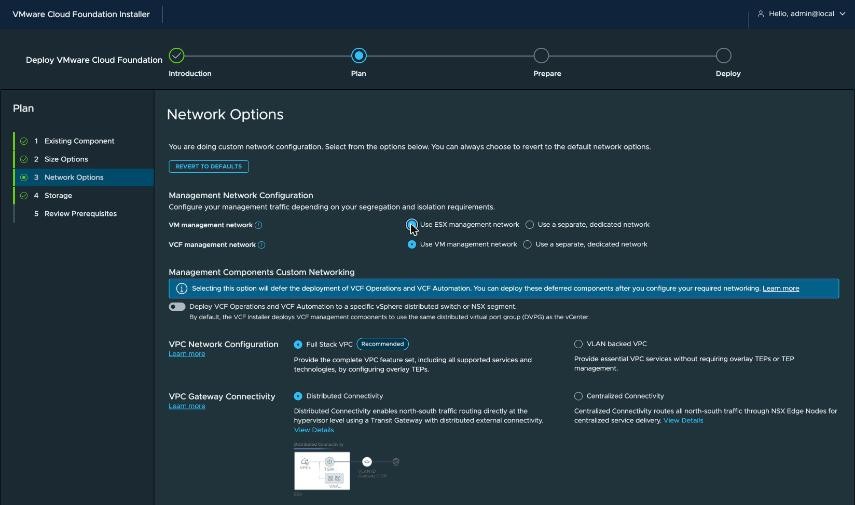
| Network options | VM management uses the ESX management network. VCF management uses the VM management network. | One management VLAN. A lab simplification. |
| Network options | Full Stack VPC | Tenancy needs private subnets and SNAT. A VLAN-backed VPC gives up both. |
| Network options | Distributed Connectivity | North-south traffic is routed at every hypervisor by a distributed transit gateway. No Edge cluster, no Tier-0, no BGP. |
| Storage | vSAN · ESA · Allow auto claim of HCL incompatible disks | Consumer NVMe. Lab only. |
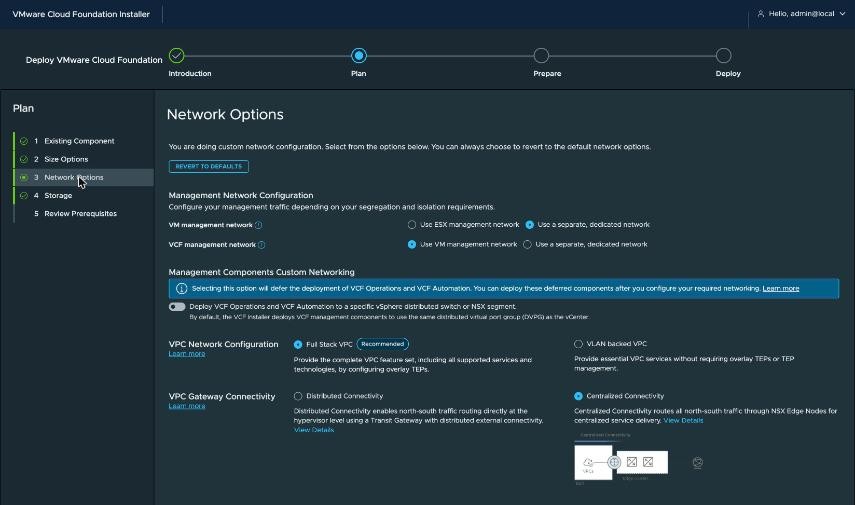
The saved draft I found in the wizard was set to Centralized connectivity on a separate VM management network:
Corrected:
On 4 Storage, choose vSAN and the ESA architecture. The checkbox under it is the one that matters for a lab. The picture shows the page before it is ticked:
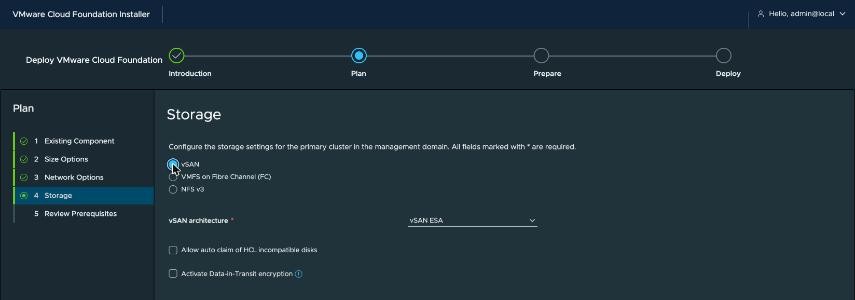
The docs describe that checkbox as allowing “the vSAN ESA automatic disk-claim process to claim storage devices that VCF Installer cannot verify against the vSAN Hardware Compatibility” list. In the JSON it is esaConfig.skipHclAutoDiskClaim: true.
📖 Reference — VMware Cloud Foundation 9.1 documentation, Deployment › Start a New VCF Fleet or a New VCF Instance, pp. 2436–2442.
Step 3 — Review prerequisites, and export the schema
Where: the Installer wizard › Plan › 5 Review Prerequisites.
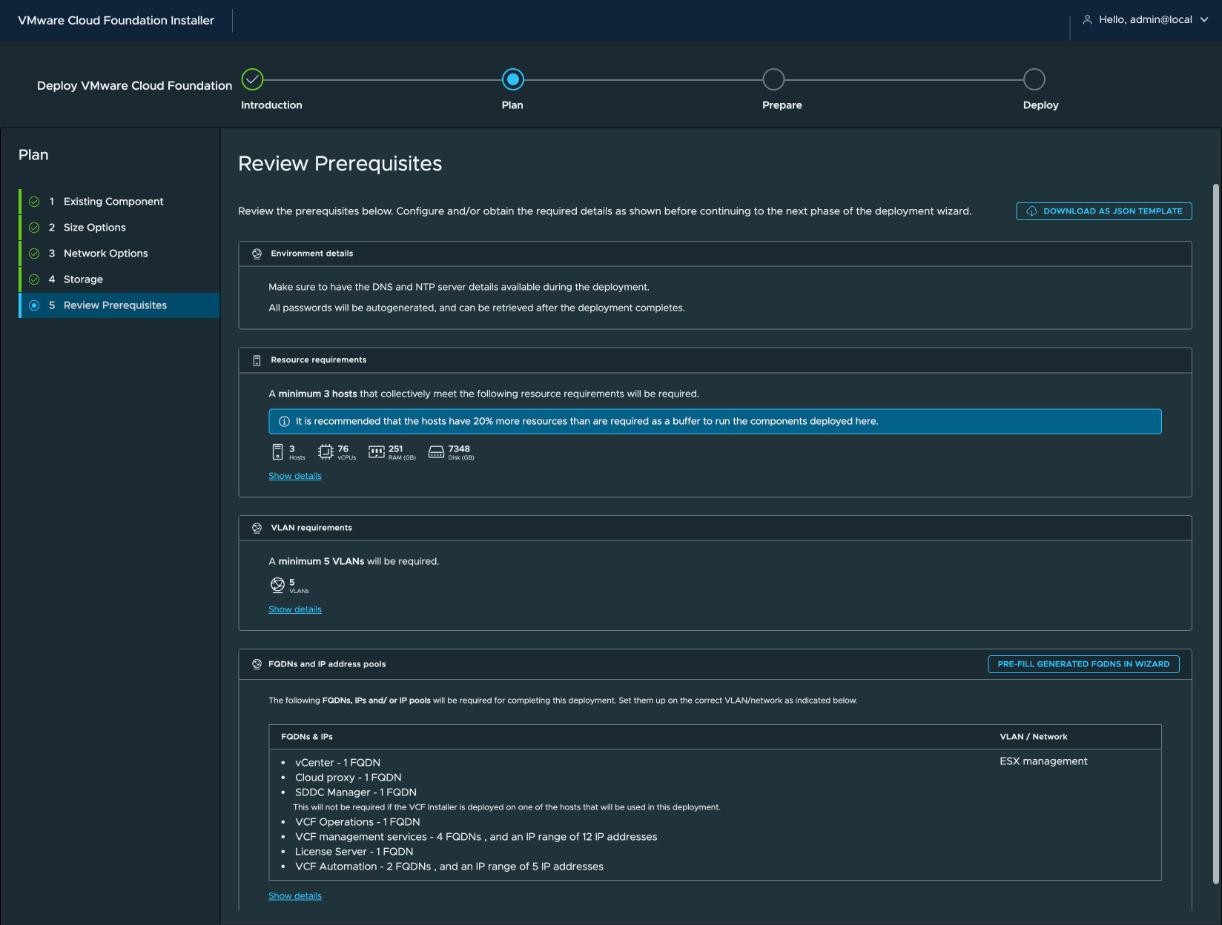
With those Plan choices it asks for exactly five VLANs. Show details names them:
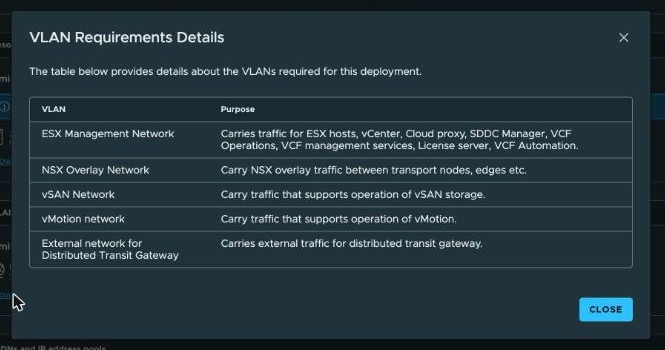
The fifth one is what Distributed Connectivity adds.
Download as JSON template is worth pressing. The export is the authoritative schema for the choices you just made, so I keep it in git beside my own template. It showed something no blog post did — the shape of the distributed gateway section:
"nsxtSpec": {
  "vpcSpec": {
    "dtgwSpec": {
      "vlan": "",
      "gatewayCidr": "",
      "externalIpBlockCidr": "",
      "privateTgwIpBlockCidr": "172.31.0.0/16"
    }
  }
}
It also showed that with shared management the spec carries only MANAGEMENT, VMOTION and VSAN networks. There is no VM_MANAGEMENT entry.
Step 4 — Render the spec and check it
Where: the build workstation, in the build repo.
| Command | What it does | Result |
|---|---|---|
uv run scripts/render_spec.py --check | Checks every placeholder resolves and that the template holds no literal credential. Fails on any value still marked TO-ALLOCATE. | Pass |
uv run scripts/netcheck.py --local | Checks the addresses and DNS records the spec depends on. | 98 pass, 0 stale, 1 missing — the external gateway |
uv run scripts/render_spec.py | Writes the real JSON to a git-ignored directory, readable only by me. | Rendered |
The one missing item is the distributed gateway’s external network. It comes back in the section on what validation does not test.
Step 5 — Load the JSON
Where: the Installer home page › Deploy using JSON spec › upload.
I upload the file myself. The build tooling never types a credential into a browser.
The home page only offers Deploy using JSON spec when no wizard draft exists. With a draft it shows Resume and Cancel progress. Cancelling loses nothing, because every Plan choice is in the JSON.
Step 6 — Run 1: one failure hides fifteen checks
Where: the Installer wizard › Deploy › 2 Validate & Deploy.
Deployment Specification succeeded. Security Configuration failed on all four hosts:
SSL thumbprint for ESX <fqdn> is not matching. Expected '…', actual '…'Every other check was then skipped, with “Validation skipped due to an issue found in another task that this validation relies on”. So a first run can tell you almost nothing.
The cause: a reinstall regenerates the host certificate. The inventory had the new thumbprints, and they matched the live certificates. The spec template still held the old ones. Same fact, two places, one stale. It is the same disease the kickstart page cured.
The fix: the template now says FROM-INVENTORY, and the renderer fills each host’s thumbprint from the inventory. A host with no recorded thumbprint is a render error, not a silent gap.
Step 7 — Walk the wizard against the spec
Where: the Installer wizard › Prepare, every page, read against the JSON.
One finding. Host TEPs were on DHCP. With no nsxtSpec.ipAddressPoolSpec in the JSON, the Installer chooses DHCP for the NSX overlay. The overlay VLAN has no DHCP server, by design. I set the pool in the wizard, read the product’s own JSON shape back from it, and put that shape in the template:
"ipAddressPoolSpec": {
  "name": "…",
  "description": "…",
  "subnets": [
    {
      "cidr": "10.131.5.0/24",
      "gateway": "10.131.5.1",
      "ipAddressPoolRanges": [
        { "start": "10.131.5.100", "end": "10.131.5.199" }
      ]
    }
  ]
}
A small trap while doing it: entering the overlay gateway makes the wizard fill both range fields for you. Typing into them appends to what is there.
Three pages worth seeing on the way through.
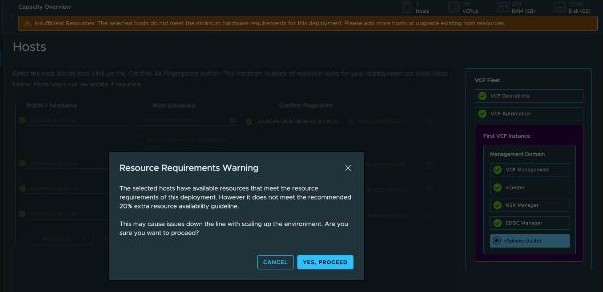
2 Hosts says two things at once. The banner behind the dialog says the hosts “do not meet the minimum hardware requirements”. The dialog says they “meet the resource requirements” but not “the recommended 20% extra”:
8 NSX Manager has the only two distributed gateway fields the wizard offers, a VLAN ID and a gateway CIDR. The values in this picture were a proposal when it was taken, not an allocation:
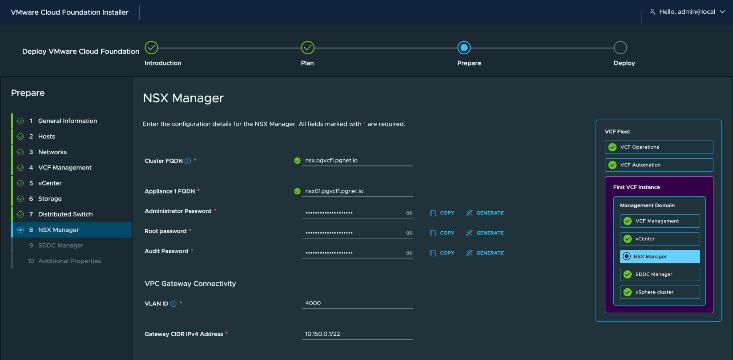
externalIpBlockCidr and privateTgwIpBlockCidr have no wizard field. JSON is the only place to set them.
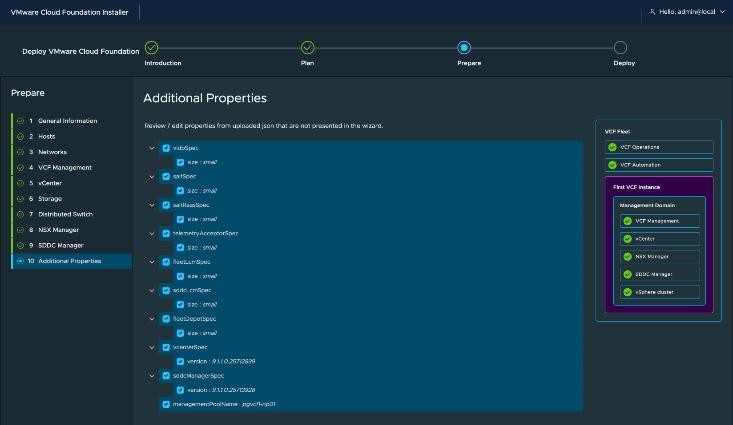
10 Additional Properties is the page built for this pattern. Its own words: “properties from uploaded json that are not presented in the wizard”.
Step 8 — Run 2: a clean validation on lab hardware
Where: the Installer wizard › Deploy › 2 Validate & Deploy › Re-run validations.
Seventeen checks, about eleven minutes. The HCL check took four of them and the three network connectivity checks took three.
 1  Deployment Specification                        Succeeded
 2  Security Configuration                          Succeeded
 3  DNS Resolution                                  Succeeded
 4  Versions and Bundles                            Succeeded
 5  ESX Host Configuration                          Succeeded
 6  Time Synchronization                            Succeeded
 7  Existing SDDC Manager Configuration             Succeeded
 8  vSAN ESA Disks Eligibility                      Succeeded
 9  ESX Host vSAN HCL Compatibility                 WARNING (acknowledgeable)
      For each of pgesxa1, pgesxa2, pgesxa3, pgesxa4:
        Host <fqdn> is not HCL compatible.
          Remediation: Please check the logs for further details or check Broadcom Compatibility
          Guide at https://compatibilityguide.broadcom.com
        No vSAN ESA certified disks found on the ESX Host <fqdn>
          Remediation: No vSAN ESA certified disks found on the ESX Host <fqdn>. Provide ESX Host
          with vSAN ESA certified disks.
10  Password Policies                               Succeeded
11  Network Configuration                           Succeeded
12  vMotion Network Connectivity                    Succeeded
13  vSAN Network Connectivity                       Succeeded
14  NSX Host Overlay Network Connectivity           Succeeded
15  VCF Installer Required Capacity Calculation     Succeeded
16  VCF Installer Available Capacity Calculation    Succeeded
17  VCF Installer Capacity Validation               WARNING (acknowledgeable)
      Insufficient vCPUs. 64 available cores are less than the required 76 vCPUs.
      Assuming 1 vCPU = 1 core
        Remediation: Add hosts with more CPU cores or free up CPU resources in existing hosts

Totals: 15 succeeded, 2 warnings, 0 failed.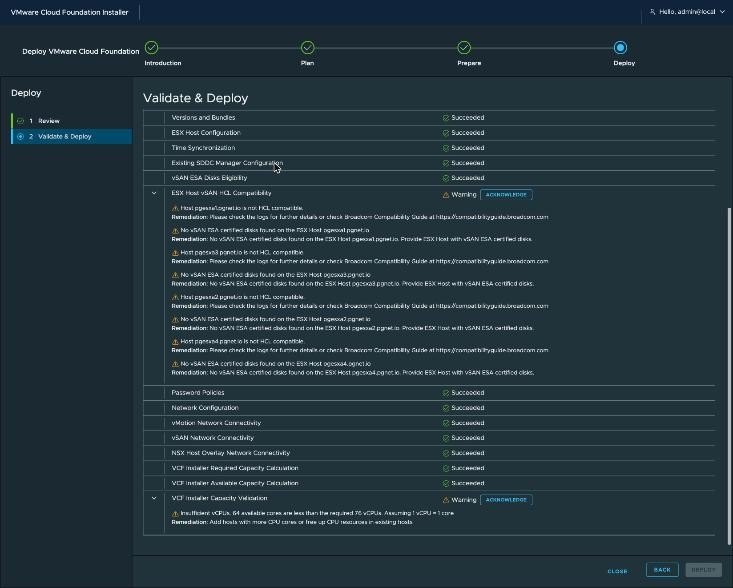
What each result settles:
- DNS Resolution succeeded with the ESX hosts in the parent zone, the instance components in a child zone and the fleet components in a third. The wizard’s Default hostname DNS suffix is a typing convenience. Its own help says it is “appended to the hostname to generate the actual FQDN”. It is not a rule that everything shares one domain. Give every name as a full FQDN and it does not matter.
- ESX Host Configuration succeeded. What the kickstart and the readiness check produce is what the Installer wants.
- vSAN ESA Disks Eligibility succeeded, and vSAN HCL Compatibility warned — “is not HCL compatible” and “No vSAN ESA certified disks found”, per host, and you can acknowledge it. It is one flag in the spec. In the 9.1.0 build the same point needed a hand-edited HCL database and a mock-hardware VIB.
- Capacity Validation warned — “64 available cores are less than the required 76 vCPUs. Assuming 1 vCPU = 1 core”. The Installer counts physical cores one for one and ignores SMT.
- vMotion, vSAN and NSX host overlay connectivity succeeded at MTU 9000 with both uplinks active. In the 9.1.0 build the validator’s test interfaces flapped between switch ports with two active uplinks. On 9.1.1 they did not.
A green validation says nothing about the distributed gateway
Network Configuration succeeded with an external VLAN that was not built and a gateway that did not answer. The Installer checks the syntax of dtgwSpec. It does not check the network behind it.
The requirements are yours to prove:
- the external VLAN is on every VPC host, on the same distributed switch and physical NICs as the host TEPs
- ICMP redirects are off on the physical gateway for that VLAN
- the gateway forwards a packet back out of the interface it arrived on
- the external IP block is the same as, or a subset of, the external VLAN’s subnet
- the addresses used by other physical devices on the external VLAN are excluded from the external IP block with an exclude range. The gateway’s own address is excluded by default
📖 Reference — VMware Cloud Foundation 9.1 documentation, NSX › Setting up Network Connectivity › Set up Distributed Network Connectivity, pp. 3296–3298. Design › Workload Connectivity Detailed Design › Distributed VLAN Connectivity Model, pp. 1837–1844, requirements
VCF-WLDCON-DTGWVLAN-REQD-CFG-001to-014. The exclusion rule is-005, p. 1841.
Step 9 — Acknowledge and deploy
Where: the Installer wizard › Deploy › 2 Validate & Deploy.
Deploy stays greyed out until each warning is acknowledged on its own:

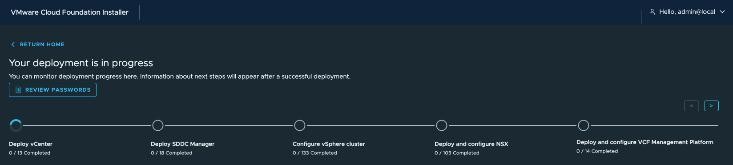
Then Deploy:
Three things the Installer does that are worth knowing
- The wizard draft lives in the browser, not on the appliance. Closing the wizard says “Progress is Saved Locally … will not be available from another browser”. That draft is the whole spec, passwords included, in clear text in the browser’s local storage. Clear the site data for the appliance when the deployment is done.
- The login is per tab, as in step 1.
- The hosts’ SSH host keys change. During Deploy vCenter the Installer runs “Rotate SSH Keys” and “Update Known Hosts in SDDC Manager”. A
known_hostsmismatch on the ESX hosts afterwards is expected.
Lab-only choices
| What | Why it is here | What a supported build does |
|---|---|---|
Allow auto claim of HCL incompatible disks (esaConfig.skipHclAutoDiskClaim: true) | Consumer NVMe, not on the vSAN compatibility list | Certified ESA devices |
| Acknowledging the HCL warning | The same | There is no warning to acknowledge |
| Acknowledging “64 cores < 76 vCPUs” | Four 16-core mini-PCs | Hosts that meet the requirement with the 20% buffer |
| One VLAN for ESX, VM and VCF management | Lab simplicity | The docs recommend putting the ESX hosts on an ESX management network that is separate from the VM management network, for security (VCF-ESX-RCMD-NET-001, a recommendation) |
| vSAN data-in-transit encryption off | Lab choice | On |
| Deploying before the external VLAN was built | Time | Build and prove the external network first |
| Depot over basic-auth HTTPS on a NAS | An offline lab depot | Whatever your organisation requires |
📖 Reference —
VCF-ESX-RCMD-NET-001, VMware Cloud Foundation 9.1 documentation, Design › Management Domain Design Selections › ESX Model – Single-Rack vSphere Cluster Model, p. 849 (section pp. 846–853). The same recommendation repeats for the other cluster models.
About the references
Page numbers are from the September 2026 build of the VMware Cloud Foundation 9.1 PDF. Broadcom rebuilds the PDF from time to time and the page numbers move, so each reference also gives the section name.