Kickstart: One USB Key, Eight Hosts
How eight bare machines become ESX 9.1.1 hosts the VCF Installer will accept — with a kickstart generated from the inventory and a root password that never sits in a file I keep.
VCF 9.1.1 lab rebuild. Part of the follow-along guide, published live as the build happens.
📘 Official documentation. This is a lab walkthrough, not a replacement for the vendor docs. For the authoritative, supported procedures, follow Broadcom’s VMware Cloud Foundation 9.1 documentation. Where this guide and the official docs differ, the official docs win.
Where we are: after the hardware, before the VCF Installer. Nothing of VCF exists yet. This page is how a bare machine becomes an ESX 9.1.1 host that the VCF Installer will accept.
Written against ESX 9.1.1.0 build 25714478.
pgesxa1, was written on 2026-09-17 and that run is shown below. Two of the eight hosts are built and pass the readiness check in step 7: pgesxa1 and pgesxa2. The console screenshots for the boot menu, the install and first boot are still to be added. The remaining hosts repeat the same steps.What is involved
None of these is part of VCF. Each one does a job in the lab that you will need your own answer for.
| Component | What it is | What it does here |
|---|---|---|
| The build workstation | My Mac | Renders the kickstart files and writes the USB key. |
| The inventory | Two YAML files per host in the build repo | Holds each host’s addresses, NIC roles and disk identities. Last checked live against vCenter on 2026-08-20. |
| OpenBao | The lab’s secret store, an open-source fork of Vault | Holds each host’s root password. Nothing else does. |
| The depot | The lab’s offline software depot, on the NAS | Serves the community driver bundles to each host at first boot. Later it serves the VCF binaries too. |
| The IP KVM | Network keyboard, video and mouse | The only way to see a console without standing at the host, because none of these machines has a BMC. |
ksrender.py, kscreate.py, the drivers check, the settings file with every comment intact, the tests, and a made-up three-host inventory you can run it against today. It is lab-only, unsupported, personal work, and not endorsed by Broadcom.The public repo does not hold my real inventory. It is produced by a one-way export that swaps lab names for placeholders and refuses to write if it finds a real serial, MAC address, device id, thumbprint, lab name or credential. It is the same idea as the kickstart itself: the file you publish is never the file you work from.
postbuild.py and the memory tiering tool are not published yet. They will arrive with the pages that cover them.
The flow
View source
flowchart TD
  A[Inventory<br/>hardware.yaml] --> B[ksrender.py<br/>ks.cfg + placeholder]
  V[(OpenBao)] -. root password .-> C
  B --> C[kscreate.py<br/>writes the USB key]
  C --> D[IP KVM<br/>one-time boot from USB]
  D --> E[Install<br/>wipes disks, reboot 1]
  E --> F[First boot<br/>settings, drivers, reboot 2]
  F --> G[postbuild.py<br/>check then apply]
Pattern: the kickstart is generated, not written
The lab had eight ks.cfg files kept by hand, and they had quietly rotted:
- one could not install at all — it had no
clearpartorinstalllines - one named disks that had since been moved to another machine
- four bound a NIC that is not the uplink
- all eight mounted NFS shares that no longer exist
Every one of those facts was already correct in the inventory. So ksrender.py now renders all eight files from the inventory, and ksrender.py --check fails the build if a file is ever edited by hand.
The rule I take from it: if a fact lives in two places, generate one from the other and test the join.
Pattern: the password is never in the file you keep
A kickstart needs a rootpw line. The file in git carries a pointer, not a password:
rootpw {{bao:infrastructure/hosts/pgesxa1#SSH_PASSWORD}}The pointer names the secret’s path and key in OpenBao. kscreate.py swaps in the real value only while it writes the USB key. After this run I checked all three copies, without displaying any value:
| Copy | rootpw holds |
|---|---|
git — kickstart/pgesxa1/ks.cfg | placeholder |
| workstation — the tool’s own output copy | placeholder |
USB key — ks.cfg | the real 24-character value |
This design is a direct response to a real failure. The previous build’s kickstarts and deployment spec carried one shared password in plain text, in git. The fix is not “be more careful” — it is that the file I keep can no longer hold the value.
Step 1 — Mount the ESX ISO
Where: the build workstation, in a terminal.
diskutil image attach ~/Downloads/VMware-VMvisor-Installer-9.1.1.0.25714478.x86_64.isoIt mounts as /Volumes/ESXI-9.1.1.0-25714478-STANDARD. On current macOS hdiutil attach is deprecated; diskutil image attach replaces it.
Step 2 — Check the kickstarts against the inventory
Where: the build workstation, in the build repo.
uv run scripts/ksrender.py --checkEight ok lines and exit code 0 means every kickstart matches the inventory. Anything else means a file was edited by hand or the inventory changed. Re-render before going further.
Step 3 — Write the USB key
Where: the build workstation, in the build repo, with the USB key plugged in.
uv run scripts/kscreate.py --kickstart-dir kickstartThe tool asks three things: which ISO volume, which host, and which USB device. Then it wants YES typed in full before it erases anything.
This is my real run for pgesxa1. It was captured before the scripts moved to uv, so it shows python scripts/…. The output is the same.
$ diskutil image attach ~/Downloads/VMware-VMvisor-Installer-9.1.1.0.25714478.x86_64.iso
/dev/disk5                                              /Volumes/ESXI-9.1.1.0-25714478-STANDARD

$ python scripts/kscreate.py --kickstart-dir kickstart

══════════════════════════════════════════════════
 ESXi Boot USB Creator
══════════════════════════════════════════════════

➤ Checking for mounted ESXi ISO volumes

Select mounted ESXi ISO volume:
  1. /Volumes/ESXI-9.1.1.0-25714478-STANDARD

Enter selection number: 1

Select host to configure:
  1. clean install — no kickstart (interactive ESXi installer)
  2. minimal — base install + DHCP + AMD Ryzen/Zen tweaks
  3. pgesxa1
  4. pgesxa2
  5. pgesxa3
  6. pgesxa4
  7. pgesxi1
  8. pgesxi2
  9. pgesxi3
  10. pgesxi4

Enter selection number: 3

➤ Detecting USB devices

Select USB device to format:
  1. /dev/disk4 - 61.5 GB

Enter selection number: 1

⚠️  WARNING: All data on /dev/disk4 (61.5 GB) will be erased!
Type 'YES' to continue: YES

➤ Formatting USB drive
Started erase on disk4
Unmounting disk
Creating the partition map
Waiting for partitions to activate
Formatting disk4s1 as MS-DOS (FAT) with name PGESXA1911
Mounting disk
Finished erase on disk4
✓ USB drive formatted with volume name: PGESXA1911

➤ Copying ESXi files to USB drive
Copying files: 100%|████████████████████████████████████████| 733M/733M [00:10<00:00, 71.1MB/s]
✓ ESXi files copied successfully

➤ Loading kickstart file for pgesxa1
✓ Loaded kickstart file from kickstart/pgesxa1/ks.cfg

➤ Resolving secrets from OpenBao (values go to the USB stick only)
✓ Resolved {{bao:infrastructure/hosts/pgesxa1#SSH_PASSWORD}}
✓ Kickstart file saved to /Volumes/PGESXA1911/ks.cfg
✓ Kickstart file also saved to ~/pgvcf/output/kickstart/pgesxa1_ks.cfg

➤ Updating boot configuration
✓ Boot configuration updated successfully
ℹ Removed 'cdromBoot'; kickstart wired in (ks=usb:/ks.cfg)

══════════════════════════════════════════════════
 ESXi Boot USB Created Successfully
══════════════════════════════════════════════════
ℹ USB drive: /Volumes/PGESXA1911
ℹ Host: pgesxa1
ℹ You can now safely eject the USB drive and use it to boot your ESXi host.
What to look for in that run:
- It only offers external physical disks as erase targets. The mounted ISO is a disk image, so it cannot be picked by mistake.
- The key is relabelled from the host and version —
PGESXA1911. That is a quick visual check that the stick is for the host in front of you. Resolved {{bao:…}}is the line that shows the password was fetched. The value itself is never printed.Removed 'cdromBoot'—boot.cfgends up withkernelopt=runweasel ks=usb:/ks.cfg. Left in,cdromBootmakes the installer look for a CD.- 733 MB copied in 10 seconds.
Step 4 — Boot the host from the key
Where: at the host, through the IP KVM.
Use the one-time boot menu — F7 on the MS-A2 — and choose the USB key. Leave the permanent boot order with the ESX disk first, so the first reboot lands on the new install and not back on the key.
Console screenshot to be added.
Step 5 — The install
Where: the IP KVM, watching the ESX installer.
It runs unattended: accept the EULA, clear three disks (boot, memory tier, vSAN), install, reboot.
Console screenshot to be added.
Step 6 — First boot
Where: the IP KVM, watching the new ESX host.
The %firstboot section applies the settings, pulls the drivers from the depot, and reboots a second time.
Console screenshot to be added.
Check it from the outside. You can tell first boot finished without logging in. From the build workstation, ask the host for its certificate:
echo | openssl s_client -connect 10.128.1.220:443 -servername pgesxa1.pgnet.io 2>/dev/null \
  | openssl x509 -noout -subject -dates
For pgesxa1 on 2026-09-17 the subject came back with CN=pgesxa1.pgnet.io and an issue time of 06:58 UTC, a few minutes after the install. A host that has not run first boot still answers as localhost.localdomain. This is the same check the VCF Installer makes, so it is worth doing before you get there. The host also reported itself as VMware ESXi 9.1.1.0.25714478, and SSH was open, which first boot turns on.
Step 7 — Check the host is ready
Where: the build workstation, in the build repo.
uv run scripts/postbuild.py --host pgesxa1 --check
uv run scripts/postbuild.py --host pgesxa1 --apply
postbuild.py checks the host against what the inventory says it should be, first as a report and then fixing what it can. A host is ready only when every step passes.
ESXi post-build — mode=check  2026-09-17T08:34:43Z
HOST     sshkey   dns      ntp      timesync  network  drivers  READY
---------------------------------------------------------------------
pgesxa1  PASS     PASS     PASS     PASS     PASS     PASS     yes

1/1 hosts VCF-ready for [sshkey, dns, ntp, timesync, network, drivers]
pgesxa1 passed all six steps, and key authentication worked on the first connection. Checked from the inside, vSwitch0 has exactly one uplink (vmnic1), MTU 9000, port groups on VLAN 1001, 1001 and 210, a static vmk0, and no NFS mounts.
The drivers step was added today, because of what the first build found.
The finished host
Where: the IP KVM, looking at the ESX console at rest.
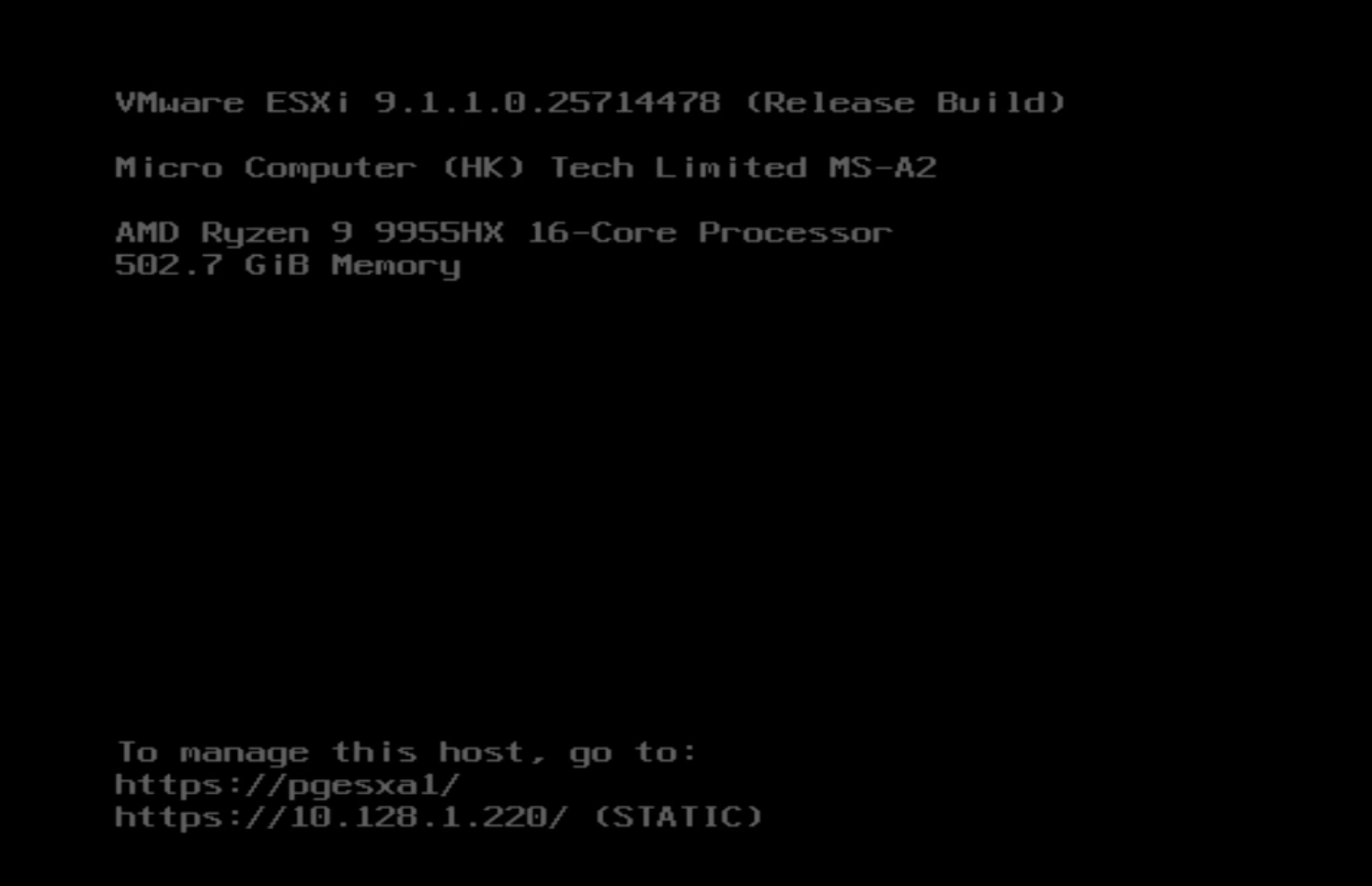
Two things to read off this screen:
502.7 GiB Memoryon a machine with 128 GB of DRAM fitted. That is memory tiering seen from the console: the 300 percent NVMe tier on top of 125.7 GiB of usable DRAM presents exactly four times as much. It is the host itself confirming the memory chart on the hardware page.(STATIC)next to the address. The kickstart’s staticnetworkline took.
The console also lists an IPv6 link-local address. It is cropped out of the picture because it is built from the network card’s MAC address, and this guide leaves MAC addresses out.
What the first build found
Neither community driver installed at first boot, and nothing said so. The kickstart ran:
esxcli software component apply -d https://<depot>/…zipESX 9.1.1 refuses it:
ValueError: Only server local file path is supported for offline bundles.
(https://<depot>/…zip) seem to be remote URIs.
First boot carries on regardless. /var/log/kickstart.log was empty. The traceback is only in /var/log/esxupdate.log. The old hand-written kickstarts had the same line, so this never worked on 9.1. The previous build’s hosts most likely got these drivers later from the cluster image, which hid it.
When a first-boot step seems to have done nothing, read esxupdate.log, not kickstart.log.
The fix
Every kickstart now does four things for each bundle: download it to the host, check its SHA-256 against a value pinned in the build repo, apply it from the local path, and write the outcome to syslog under a ks-drivers tag. You can see it in the file below.
Two things shaped it:
- The download is plain HTTP, and that is a choice. ESX’s BusyBox
wgethas no TLS, and ESX’s own Python could not verify the depot’s certificate chain (CERTIFICATE_VERIFY_FAILED). I did not switch verification off to get round that. The download is HTTP on the lab network and the integrity comes from the pinned checksum, which also pins the exact bundle version. - An applied component is not live until the next boot.
esxcli software component list --rebooting-imageshows it. The plain list does not.
The gate
So it cannot pass silently again, postbuild.py has a new drivers step, in the default run. It checks the components are present. A component that is applied but not yet booted reports REBOOT REQUIRED, not a bare failure, and is never applied twice. On pgesxa1 it took the host from DRIFT to PASS. After the reboot the Realtek port appeared as vmnic3, driver if_re.
The second host confirmed the fix. On pgesxa2 the kickstart installed both drivers itself at first boot, with no repair needed, and the host passed all six steps.
Memory tiering needs no reboot on 9.1.1
Found on the same host. In maintenance mode, setting the tier size and enabling tiering takes effect at once: the status reads ENABLED at 300 percent of DRAM, the host presents 502.7 GiB, and the uptime does not change. That overturns my own note from 9.0, which said a reboot was needed. Maintenance mode is still required to change the setting. The product’s licence line reads Licensed for 4.00 times of DRAM.
This is first-hand from ESX 9.1.1.0 build 25714478, not from the documentation.
🔗 Community — William Lam’s VCF 9.1 – Are You Using the Correct ESXCLI Command to Enable NVMe Tiering? says the same: the 9.1 method “no longer requires a system reboot”, and the host must be in maintenance mode to enable or disable tiering. Community work, not Broadcom guidance.
The kickstart, line by line
This is the real file for pgesxa1, as rendered. Three things are changed for this page: the drive serial at the end of each device id is <serial>, the automation SSH public key is shortened, and the depot’s hostname is <depot>.
# after the driver-install fix.
# pgesxa1 — GENERATED by scripts/ksrender.py. Do not edit: change the inventory
# (hosts/pgesxa1/host.yaml, hosts/pgesxa1/hardware.yaml, config/site.yaml,
# config/kickstart.yaml) and re-render. `ksrender.py --check` fails on drift.
vmaccepteula

# boot_disk: Crucial CT1000P1 NVMe 1TB
clearpart --all --overwritevmfs --drives=t10.NVMe____CT1000P1SSD8____________________________<serial>
# memtier_disk: Crucial CT1000T500 NVMe 1TB
clearpart --all --overwritevmfs --drives=t10.NVMe____CT1000T500SSD8__________________________<serial>
# vsan_disk: Crucial CT2000T500 NVMe 2TB
clearpart --all --overwritevmfs --drives=t10.NVMe____CT2000T500SSD8__________________________<serial>

install --drive=t10.NVMe____CT1000P1SSD8____________________________<serial> --overwritevmfs
reboot

# vSwitch0 gets exactly one pNIC; the VCF Installer adds the second uplink.
network --bootproto=static --device=vmnic1 --ip=10.128.1.220 --netmask=255.255.255.0 --gateway=10.128.1.1 --hostname=pgesxa1.pgnet.io --nameserver=10.200.1.240,10.200.10.75 --vlanid=1001 --addvmportgroup=1

# Resolved from OpenBao by scripts/kscreate.py when the USB stick is written.
rootpw {{bao:infrastructure/hosts/pgesxa1#SSH_PASSWORD}}

%firstboot --interpreter=busybox

while ! vim-cmd hostsvc/runtimeinfo; do
sleep 10
done

esxcli network ip dns search add --domain=pgnet.io

# NTP
esxcli system ntp set -s [ 10.200.1.240 10.200.10.75 ]
esxcli system ntp set --enabled true

# Network coredump
esxcli system coredump network set --interface-name vmk0 --server-ipv4 10.128.1.11 --server-port 6500
esxcli system coredump network set --enable true

# SSH + ESXi Shell: postbuild connects over SSH. VCF disables both at bring-up.
vim-cmd hostsvc/enable_ssh
vim-cmd hostsvc/start_ssh
vim-cmd hostsvc/enable_esx_shell
vim-cmd hostsvc/start_esx_shell
esxcli network firewall ruleset set -e true -r sshServer
esxcli system ssh key add -u root -k "ecdsa-sha2-nistp384 AAAA… <automation-public-key>"

# Advanced settings
esxcli system settings advanced set -o /UserVars/SuppressShellWarning -i 1
esxcli system settings advanced set -o /Net/TcpipDefLROEnabled -i 0
esxcli system settings advanced set -o /Net/UseHwTSO -i 0
esxcli system settings advanced set -o /Mem/ShareForceSalting -i 0
esxcli system settings advanced set -o /Mem/AllocGuestLargePage -i 0
esxcli system settings advanced set -o /VSAN/DOMNetworkSchedulerThrottleComponent -i 1
esxcli system settings advanced set -o /VSAN/Vsan2ZdomCompZstd -i 0

vim-cmd hostsvc/datastore/rename datastore1 pg-ds-pgesxa1-1

# The Installer checks the certificate CN against the FQDN; regenerate after it is set.
/bin/generate-certificates

# AMD Ryzen (consumer Zen 4/5) — LAB ONLY, unsupported hardware
echo 'monitor_control.disable_apichv ="TRUE"' >> /etc/vmware/config
echo 'cpuid.brandstring = "AMD EPYC Ryzen 9 9955HX"' >> /etc/vmware/config
echo 'cpuid.7.ebx = "-------------0------------------"' >> /etc/vmware/config
esxcli system settings kernel set -s entropySources -v 2

# Community drivers: download, verify SHA-256, apply from the local path
esxcli network firewall ruleset set -e true -r httpClient
esxcli software acceptance set --level CommunitySupported
mkdir -p /tmp/ks-drivers
wget -q -O /tmp/ks-drivers/VMware-Re-Driver_1.101.01-5vmw.800.1.0.20613240.zip http://<depot>/depot/flings/VMware-Re-Driver_1.101.01-5vmw.800.1.0.20613240.zip
if [ "$(sha256sum /tmp/ks-drivers/VMware-Re-Driver_1.101.01-5vmw.800.1.0.20613240.zip | cut -d' ' -f1)" = "365b5b2ee604111ea651dd123d8d7167bd1513a20ec217520d26923395cfba9d" ]; then
  esxcli software component apply -d /tmp/ks-drivers/VMware-Re-Driver_1.101.01-5vmw.800.1.0.20613240.zip && logger -t ks-drivers "VMware-Re-Driver: applied" || logger -t ks-drivers "VMware-Re-Driver: APPLY FAILED"
else
  logger -t ks-drivers "VMware-Re-Driver: DOWNLOAD OR CHECKSUM FAILED - not applied"
fi
wget -q -O /tmp/ks-drivers/VMware-amd-zen-ipmi_thermal_910.1.0.0006-5vmw.803.0.0.24022510.zip http://<depot>/depot/flings/VMware-amd-zen-ipmi_thermal_910.1.0.0006-5vmw.803.0.0.24022510.zip
if [ "$(sha256sum /tmp/ks-drivers/VMware-amd-zen-ipmi_thermal_910.1.0.0006-5vmw.803.0.0.24022510.zip | cut -d' ' -f1)" = "ace0841f257e49fb6ce38296164f7acbae8cc31700f6957e9903bbfbbb7405a0" ]; then
  esxcli software component apply -d /tmp/ks-drivers/VMware-amd-zen-ipmi_thermal_910.1.0.0006-5vmw.803.0.0.24022510.zip && logger -t ks-drivers "VMware-smntemp: applied" || logger -t ks-drivers "VMware-smntemp: APPLY FAILED"
else
  logger -t ks-drivers "VMware-smntemp: DOWNLOAD OR CHECKSUM FAILED - not applied"
fi
rm -rf /tmp/ks-drivers
esxcli network firewall ruleset set -e false -r httpClient

# Standard vSwitch — MTU and port groups from config/site.yaml
esxcli network vswitch standard set --vswitch-name=vSwitch0 --mtu=9000
esxcli network ip interface set -i vmk0 -m 9000
esxcli network vswitch standard portgroup set --portgroup-name="Management Network" --vlan-id=1001
esxcli network vswitch standard portgroup add --portgroup-name="pgVMMgmt" --vswitch-name=vSwitch0
esxcli network vswitch standard portgroup set --portgroup-name="pgVMMgmt" --vlan-id=1001
esxcli network vswitch standard portgroup add --portgroup-name="pgCore" --vswitch-name=vSwitch0
esxcli network vswitch standard portgroup set --portgroup-name="pgCore" --vlan-id=210

# Memory tiering: scripts/memtier_enable.py. NFS datastores: postbuild `nfs` step.
reboot
Disks are bound by identity, not by slot. clearpart and install name t10.… device ids, which are the model and serial of the drive. One of the four AMD hosts has its two NVMe drives in the opposite M.2 slots to the others. Binding by id makes that harmless.
Exactly one NIC on the standard switch. --device=vmnic1, VLAN 1001 tagged. The docs require the management adapter to be on a single management NIC on a vSphere Standard Switch. The VCF Installer moves management to the distributed switch and adds the second uplink itself. In the previous build, two active uplinks made the Installer’s validator see its test interfaces flap between switch ports.
generate-certificates runs after the name is set. ESX creates its self-signed certificate before the hostname exists, so every host starts with a certificate for localhost.localdomain. The Installer checks the certificate’s common name against the FQDN, so it has to be regenerated. The docs give the command as /sbin/generate-certificates and this file runs /bin/generate-certificates. They are one file: on ESX 9.1.1 /sbin is a symlink to /bin.
No custom DNS suffixes, and NTP is set. Both are in the same requirements.
Drivers are downloaded, checked, then applied from a local path. See What the first build found for why. Each if block compares the bundle’s SHA-256 with the pinned value and only then applies it. Every outcome goes to syslog, so a failure is visible.
What is deliberately not here. Memory tiering: it needs maintenance mode, which first boot is the wrong place for, so a separate tool owns it. NFS datastores: none are mounted on hosts before bring-up.
📖 Reference — VMware Cloud Foundation 9.1 documentation, Deployment › Preparing ESX Hosts for VCF or vSphere Foundation, pp. 2419–2425: a single management NIC on a vSphere Standard Switch, no custom DNS suffixes, NTP configured, and regenerating the self-signed certificate so the common name matches the FQDN.
Lab-only settings
| Setting | Why it is there |
|---|---|
cpuid.brandstring = "AMD EPYC Ryzen 9 9955HX" and monitor_control.disable_apichv | Consumer AMD CPUs are not supported. These make the NSX appliances and VM power-on behave. |
entropySources -v 2 | On Zen 4 and Zen 5, RDSEED is slow enough to pin CPU on NSX and VCF Automation. The setting is a bitmask: 0 defaults, 1 interrupts, 2 RDRAND, 4 RDSEED, 8 entropyd. 2 keeps a hardware random number generator without RDSEED. Read from esxcli system settings kernel list -o entropySources on ESX 9.1.1.0 build 25714478. |
cpuid.7.ebx mask | Hides RDSEED from guests. From William Lam’s VCF 9.1 – Comprehensive ESX Configuration Workarounds for Lab Deployments. This run was the test on 9.1.1, and it held: all three config lines landed, entropySources reads 2 configured and 2 at runtime, and the host sat at a load average of 0.01 for 1 h 26 min and came back clean from a reboot. That is one idle host with no VCF on it yet. The real proof is NSX and VCF Automation CPU later. |
VMware-Re-Driver and VMware-smntemp, at acceptance level CommunitySupported | Community drivers for the Realtek NIC and the AMD Zen thermal sensors. The thermal bundle is named amd-zen-ipmi_thermal but installs under the component name VMware-smntemp. |
| Driver download over HTTP with a pinned SHA-256 | ESX cannot verify the depot’s certificate chain. Integrity comes from the checksum. |
/Net/TcpipDefLROEnabled 0 and /Net/UseHwTSO 0 | Intel X710 offload workaround. Credit: William Lam, Maximizing vSAN ESA Performance on Minisforum MS-A2, March 2026. |
/VSAN/Vsan2ZdomCompZstd 0 | Cheaper vSAN compression, to save CPU. The option is present on 9.1.1 and defaults to 1. |
| SSH and the ESXi Shell enabled at first boot | The readiness check in step 7 connects over SSH. VCF turns both off again at bring-up. |
🔗 Community — the workarounds credited to William Lam are community work for lab hardware. They are not Broadcom guidance and are not supported.
What can go wrong
- A kickstart that names a disk no longer in the machine fails safe. The installer stops. It does not install somewhere else. Fix the inventory, re-render, rewrite the key.
- If the USB key is first in the permanent boot order, the host reinstalls itself in a loop. Use the one-time boot menu.
- SSH answering is not evidence of a reboot — compare uptime. One of my tools reported a reboot that never happened. It ran
esxcli system shutdown reboot -d 0, but the delay has a 10-second floor, so ESX refused the command. The tool ignored the refusal, and its wait-for-the-host step passed at once because the host had never gone down. It now uses-d 10, reports a refusal as a refusal, and treats a host as back only when its uptime is lower than before. - The key for one host holds that host’s root password in plain text until it is rewritten for the next host. Erase it after the last one.
Next
With the hosts ready, the next page is networks, names and addresses — everything the Installer will ask for — and then the VCF Installer.
About the references
Page numbers are from the September 2026 build of the VMware Cloud Foundation 9.1 PDF. Broadcom rebuilds the PDF from time to time and the page numbers move, so each reference also gives the section name.